

Design Editor: Browse & Use Templates
Templates are pre-designed layouts that help you create professional designs quickly. Browse templates by category, search for specific designs, and load them onto your canvas to customize.
Accessing Templates
Section titled “Accessing Templates”- Click Templates in the left sidebar
- The templates panel opens on the left
- Browse templates by category or search
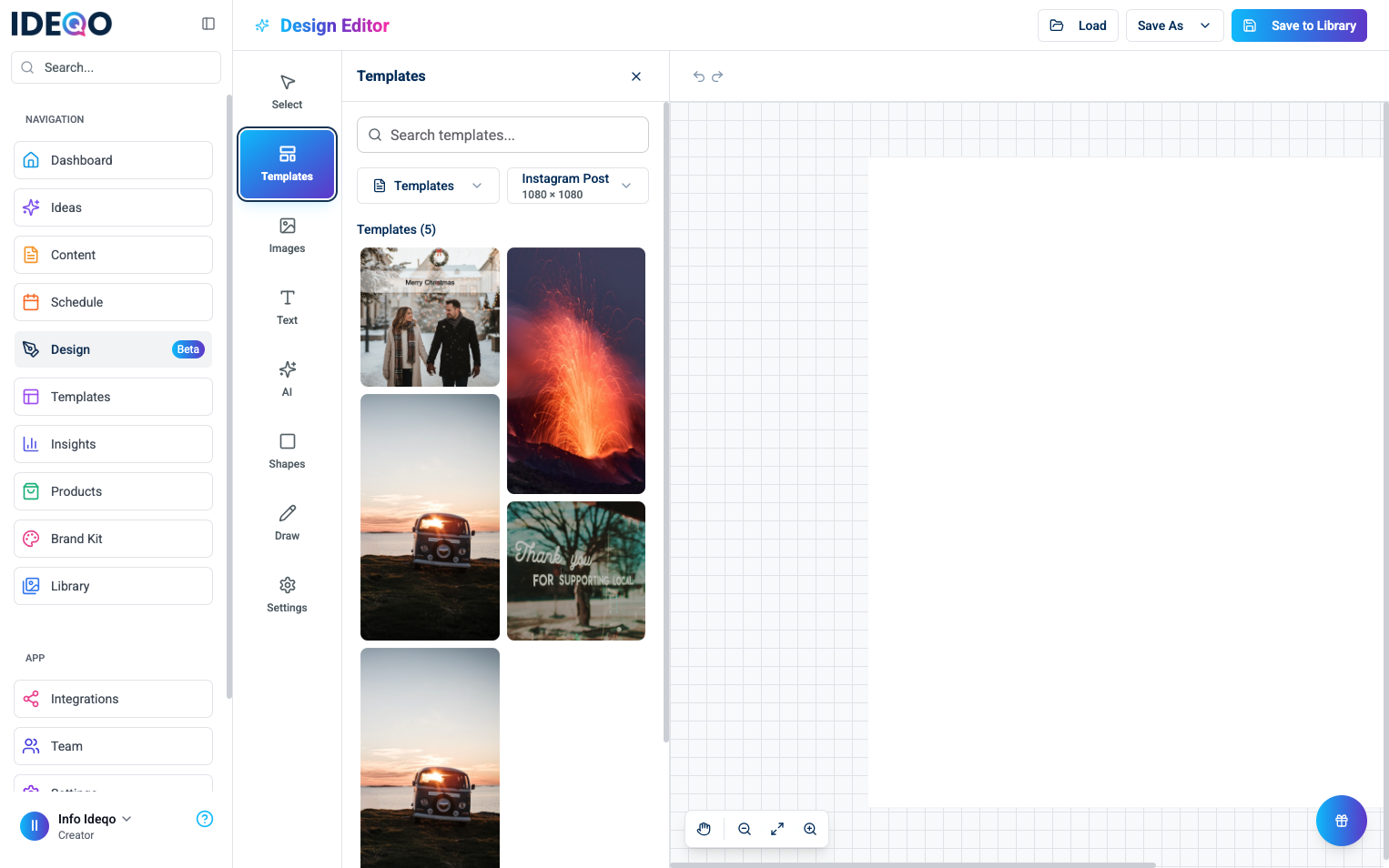
Template Categories
Section titled “Template Categories”Browse templates by category:
- All Templates - View all available templates
- Social Media - Templates for social media posts
- Marketing - Marketing and promotional templates
- Business - Professional business templates
Click a category to filter. The active category highlights.
Searching Templates
Section titled “Searching Templates”Find specific templates:
- Type keywords in the search bar
- Matching templates appear automatically
- Clear the search to see all templates again
Filtering by Canvas Size
Section titled “Filtering by Canvas Size”Templates filter by canvas size to match your current canvas:
- Use the size dropdown at the top
- Select a canvas size (Instagram Post, Story, Facebook Post, etc.)
- Only matching templates appear
Loading a Template
Section titled “Loading a Template”- Browse or search for a template
- Click a template preview
- If you have content on the canvas, a confirmation dialog appears
- Click Load Template to replace your current design
Customizing Templates
Section titled “Customizing Templates”After loading a template, customize it:
- Edit Text - Double-click text to edit
- Replace Images - Select images and replace with your own
- Change Colors - Use the Fill tool to change colors
- Add Elements - Add more text, images, shapes, or drawings
- Remove Elements - Select and delete what you don’t need
Creating a Blank Canvas
Section titled “Creating a Blank Canvas”Start from scratch:
- Click Templates in the left sidebar
- Click the Canvas Size dropdown at the top of the panel
- Select Custom Canvas Size from the bottom of the list
- Enter width and height (1px to 4,000px)
- Click Create Canvas
You can also select preset sizes (like Instagram Post or Story) directly from the dropdown.
Saving Your Design as a Template
Section titled “Saving Your Design as a Template”Save your design as a reusable template:
- Click Save As in the header
- Select Save as Template
- Enter a name and description
- Choose a category (Social Media, Marketing, or Business)
- Add tags (optional)
- Choose whether to save as public template
- Click Save
Your saved template appears in the templates library for future use.
- Start with Templates - Quick way to create professional designs
- Customize Freely - Modify templates to match your brand
- Save Your Work - Save successful designs as templates for reuse
- Use Size Filters - Filter by canvas size to find matching designs
- Search Regularly - Use search to quickly find templates by content type
What’s Next?
Section titled “What’s Next?”- Learn about AI Image Generation - Generate custom images with AI
- Learn about Images - Upload and add images to your designs
- Learn about Saving & Exporting - Save and export your designs
Need help? Contact support or check out our other design editor guides.