

Design Editor: Add & Manage Images
Add images to your designs by uploading your own photos or searching free stock photos from Unsplash. Images resize, move, and style just like other design elements.
Accessing Images
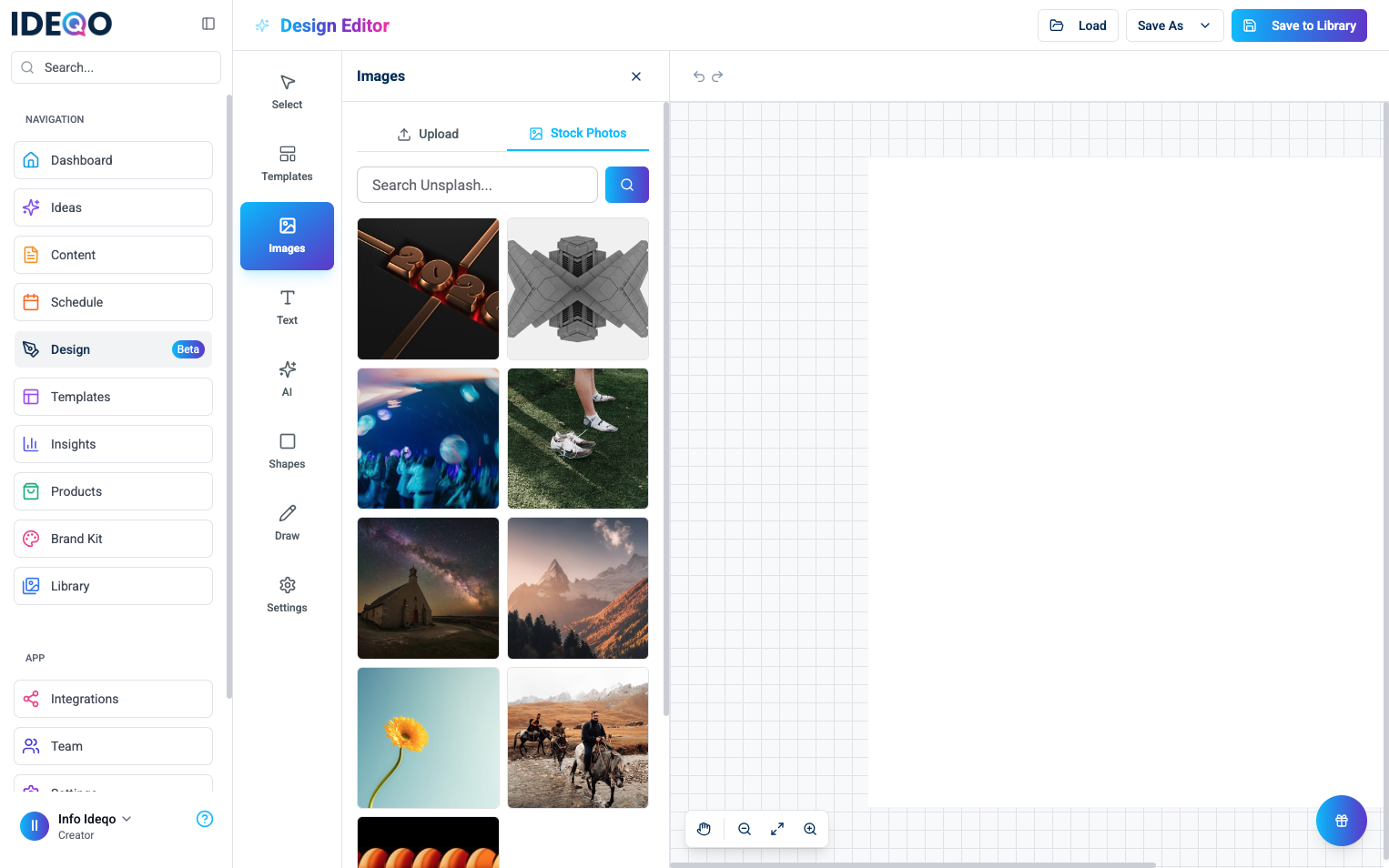
Section titled “Accessing Images”- Click Images in the left sidebar
- The Images panel opens on the right
- Choose between Upload or Stock Photos tabs
Uploading Your Own Images
Section titled “Uploading Your Own Images”Supported Formats
Section titled “Supported Formats”- PNG - Best for graphics with transparency
- JPG/JPEG - Best for photos
- GIF - Animated or static images
File Size Limits
Section titled “File Size Limits”- Maximum file size: 10MB
- Larger files show an error message
Upload Steps
Section titled “Upload Steps”- Click the Upload tab (if not already selected)
- Click the upload area to select an image from your computer
- The image appears on your canvas
Searching Stock Photos
Section titled “Searching Stock Photos”Access millions of free, high-quality photos from Unsplash:
- Click the Stock Photos tab
- Enter keywords in the search bar
- Click the search icon or press Enter
- Browse results and click a photo to add it to your canvas
Getting Started with Stock Photos
Section titled “Getting Started with Stock Photos”If you haven’t searched yet:
- Click Show Random Photos to see a selection
- Browse the random photos
- Click any photo to add it to your canvas
Search Tips
Section titled “Search Tips”- Be Specific - Use clear keywords (e.g., “sunset beach” instead of “nice”)
- Try Variations - Search multiple terms to find different options
- Browse Random - Use random photos for inspiration
Using Images in Your Design
Section titled “Using Images in Your Design”After adding an image to your canvas:
Resizing Images
Section titled “Resizing Images”- Click the image to select it
- Drag the corner handles to resize
- Hold Shift while dragging to maintain aspect ratio
- Use the edge handles to resize width or height only
Moving Images
Section titled “Moving Images”- Click and drag the image to move it
- Use arrow keys for precise positioning
- Align with other elements using the grid
Rotating Images
Section titled “Rotating Images”- Select the image
- Hover over the rotate handle (above the image)
- Click and drag to rotate
- Hold Shift while rotating for 15-degree increments
Applying Filters
Section titled “Applying Filters”- Select an image
- Click Filter in the properties panel (or use the Filter tool)
- Choose from filter options:
- Basic - Greyscale, sepia, black & white, invert
- Vintage - Polaroid, kodachrome, vintage, and other retro effects
- Adjustments - Brightness, contrast, saturation, gamma
- Effects - Blur, sharpen, emboss, pixelate
- Color - Hue rotate, blend, remove color
See Styling & Effects for more details on filters.
Removing Backgrounds
Section titled “Removing Backgrounds”Background removal is coming soon. For now, use images with transparent backgrounds (PNG format) or images that already have the background removed.
Best Practices
Section titled “Best Practices”- Use High Resolution - Start with high-quality images for best results
- Match Canvas Size - Use images sized appropriately for your canvas
- Choose Relevant Images - Select images that match your content and message
- Consider Composition - Look for images with good composition and focal points
- Brand Consistency - Use images that match your brand style and colors
Stock Photo Usage
Section titled “Stock Photo Usage”- Attribution - Unsplash photos are free to use (attribution is optional)
- License - All Unsplash photos are free for commercial use
- Quality - Unsplash provides high-quality, professional photos
Troubleshooting
Section titled “Troubleshooting”Image Too Large
Section titled “Image Too Large”If you see “Image too large” error:
- Compress the image before uploading
- Use an image editing tool to reduce file size
- Maximum file size is 10MB
Image Won’t Load
Section titled “Image Won’t Load”- Check your internet connection (for stock photos)
- Verify the file format is supported (PNG, JPG, GIF)
- Try uploading a different image
Image Looks Blurry
Section titled “Image Looks Blurry”- Use higher resolution source images
- Don’t resize images larger than their original size
- Check your canvas zoom level (may appear blurry when zoomed in)
Stock Photo Search Fails
Section titled “Stock Photo Search Fails”- Check your internet connection
- Try different search keywords
- Use the “Show Random Photos” option
- Upload Multiple Images - Upload several images at once to have options
- Search Before Uploading - Check stock photos before uploading your own
- Use Filters - Apply filters to match your brand or design style
- Resize Appropriately - Don’t make images too large or too small
- Layer Images - Stack images with different opacities for creative effects
What’s Next?
Section titled “What’s Next?”- Learn about AI Image Generation - Generate custom images with AI
- Learn about Styling & Effects - Apply filters and effects to images
- Learn about Design Editor Overview - General guide to working with design elements
Need help? Contact support or check out our other design editor guides.