

Creating Social Posts
Write once, send to every channel you select, or give one network its own caption when needed.
The three steps
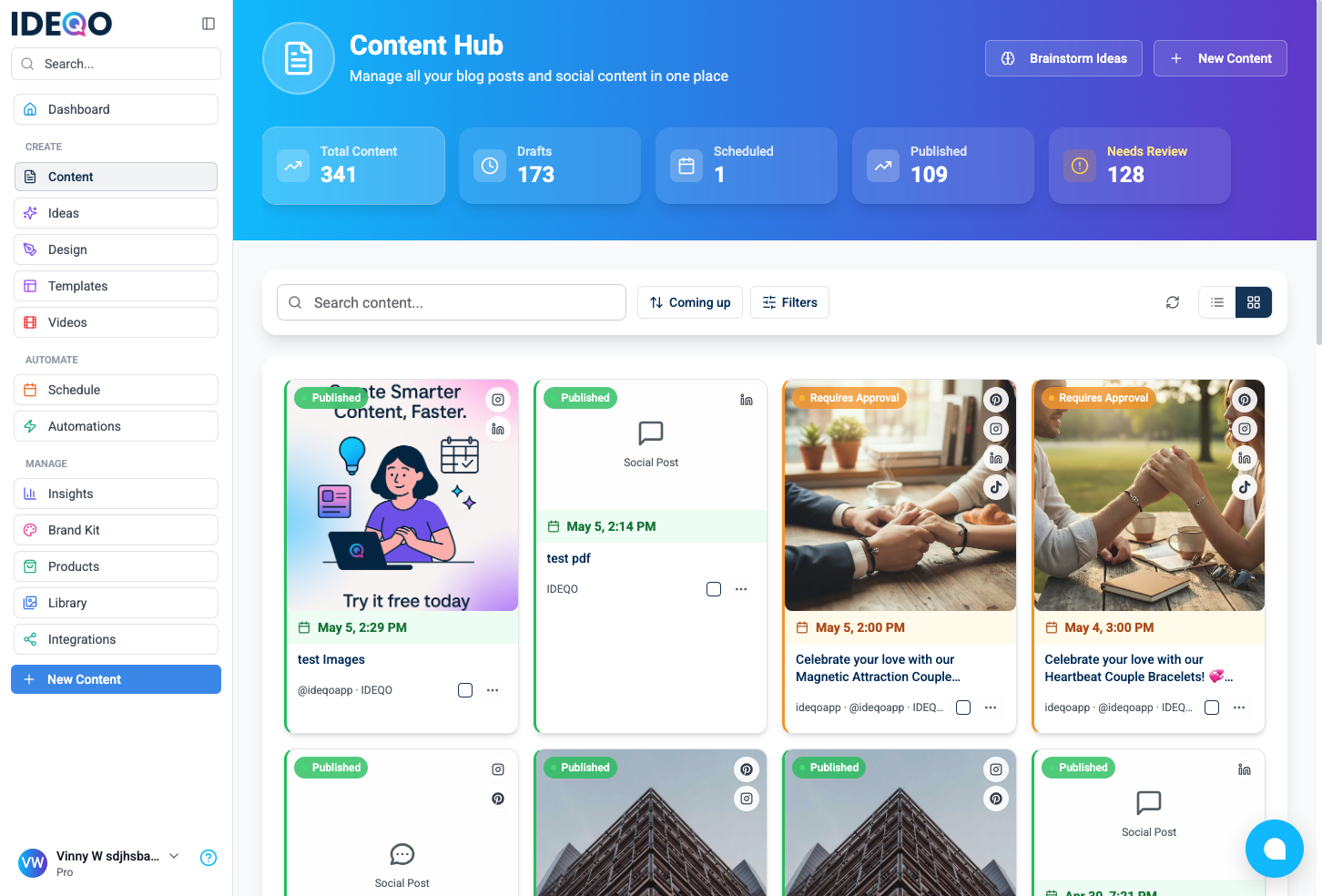
Section titled “The three steps”- Go to Content.
- Click New Content.
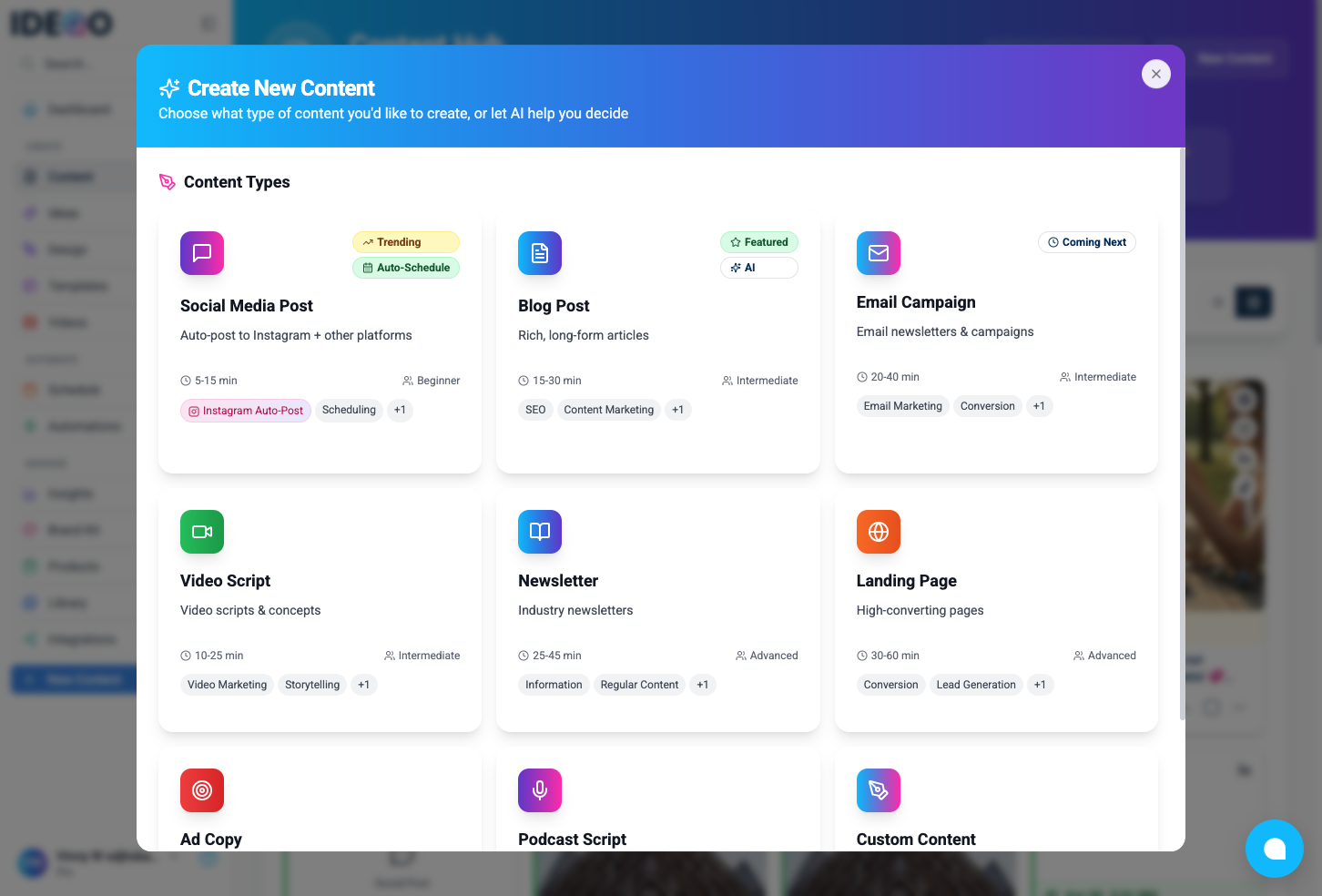
- Click Social Media Post.
That opens Create Social Post. Optional: go to /create-social-post, or from an idea use Create Content / Schedule Post.
What it looks like
Section titled “What it looks like”Content (under CREATE in the sidebar) is the library; + New Content is in the sidebar and on the page header.
Social Media Post is the first card in Create New Content.
In the composer
Section titled “In the composer”Top row: Publishing platforms. Color usually means connected; gray means connect it in Integrations first.
Click a badge to include that network in this post. The badge you last clicked is active: it sets the Preview (right column on desktop, or Preview tab on a phone) and the character limit for the caption box.
Want different copy for one network only? Click that badge (e.g. LinkedIn), turn on Customize for LinkedIn, and type there. Everyone else keeps the main caption.
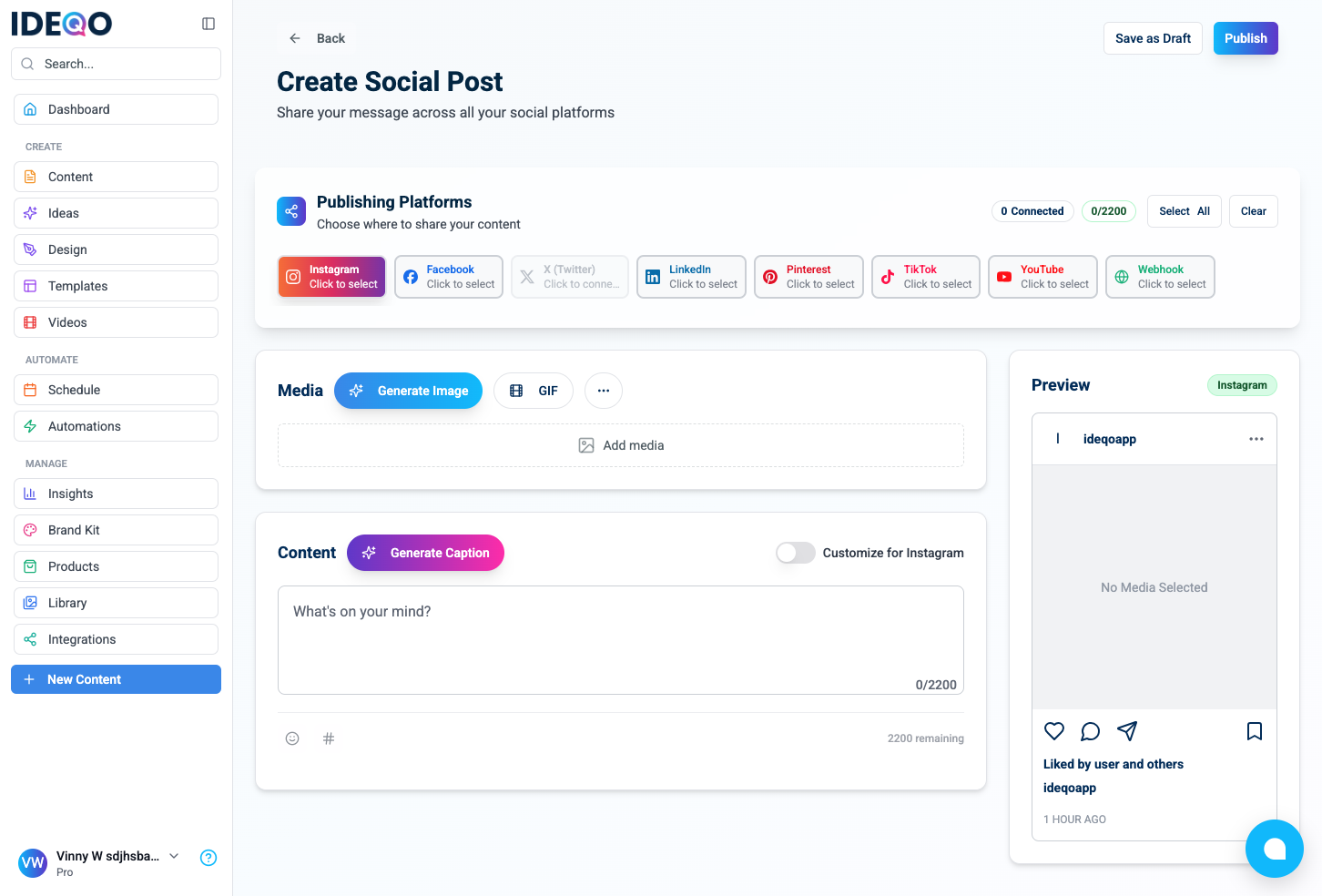
Add media in the Media area (drag files, ⋯ menu for URL / Recent Uploaded / Upload Media, GIF, Generate Image). Generate Caption (sparkles) opens AI. Save as Draft saves without posting.
Publish or schedule
Section titled “Publish or schedule”When you are ready, click Publish in the header (beside Save as Draft). You get Publish Your Content:
- Publishing to lists the accounts that will receive the post; + adds another if needed.
- Publish Now goes live immediately; confirm with Publish Now at the bottom.
- Schedule for Later offers quick times or Pick date and time; finish with Schedule Post.
- Cancel closes without posting; Save Draft saves and closes without publishing.
Publish dialog
Section titled “Publish dialog”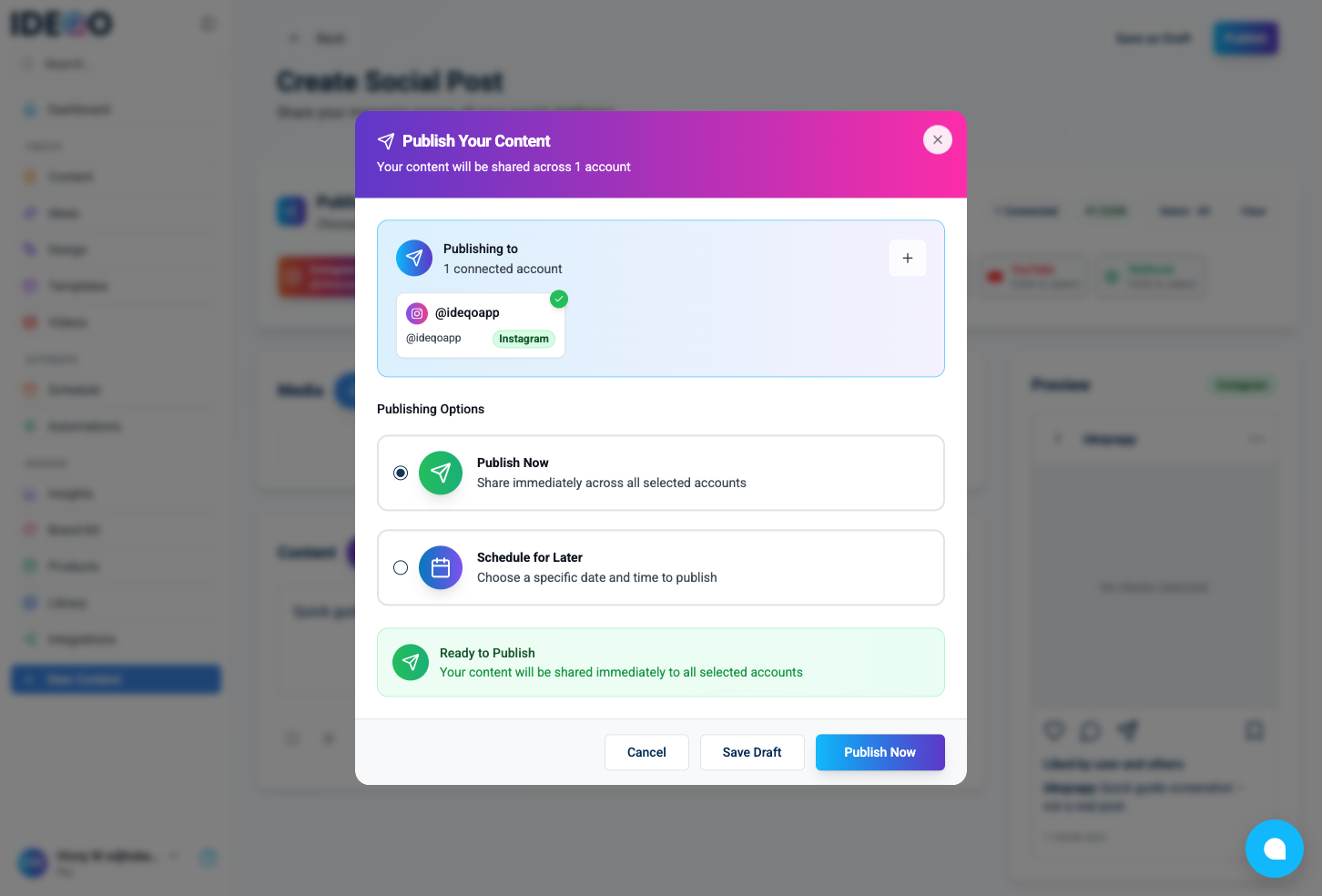
After you publish or schedule, the item shows up in Content with the right status.
Full reference: platforms, captions, media, preview
Platforms you can use
Section titled “Platforms you can use”Instagram, Facebook, LinkedIn, X (Twitter), TikTok, Pinterest, YouTube, Webhook.
Click badges to select or clear; Select All / Clear affects every connected channel. Each badge can open a menu if you have more than one account on that network. You need at least one connected account to publish.
Caption and limits
Section titled “Caption and limits”The editor uses the active platform’s limit and stops you past it. Customize for … writes an override only for that network.
| Platform | Character limit |
|---|---|
| X (Twitter) | 280 |
| TikTok | 300 |
| 500 | |
| 3,000 | |
| 2,200 | |
| 63,206 | |
| YouTube | 5,000 |
| Webhook | 10,000 |
AI: Generate Caption → choose input and options → Replace or Append.
Images: JPG, PNG, GIF, WebP. Videos: MP4, MOV, WebM work best. GIFs: Tenor or upload.
Drag files onto the media area, or use ⋯ → Upload Media / Add from URL / Recent Uploaded / external design links. Reorder by dragging; remove with X on a tile.
Checks: Instagram validation can cap at 10 items; X allows up to 4 images or 1 video; LinkedIn validates video; Facebook may warn when mixing media and needs a Video Title for video.
Preview
Section titled “Preview”Desktop: live preview in the right column. Narrow screen: Content / Preview tabs. Pick the matching badge first; if the account is not connected, the UI will ask you to connect.
Platform-specific notes
- Instagram: Carousel limit (validation on) up to 10 items.
- LinkedIn:
@org mentions when connected; video validated on add. - X: Up to 4 images or 1 video; threads not supported here.
- Facebook: Mixing-media notice; video needs a title before publish.
- YouTube: Video Title (100 chars) when YouTube is active.
- Pinterest: Pin Title and Destination URL fields when Pinterest is active.
- Webhook: Uses your webhook integration.
Editing an existing post
Section titled “Editing an existing post”Open Content, click the post, edit, then Save or Publish again. For scheduled posts you can change time, platforms, or cancel the schedule.
Best practices
Section titled “Best practices”- Use per-network overrides instead of one caption where limits differ a lot.
- Connect accounts before you rely on preview or publish.
- Respect X / Instagram media rules; fill YouTube and Facebook video titles when asked.
- Schedule ahead when you can.
Common questions
Section titled “Common questions”Can I edit a post after it’s published?
You can edit in IDEQO, but live posts on the networks do not auto-update. Delete and repost there, or create a new post.
What happens if I publish to multiple platforms?
Each destination gets its own outbound post. Overrides go as written; everything else is shared.
Can I schedule different times per platform?
Not in one post. Duplicate into separate posts for different times.
Can I save without publishing?
Yes, Save as Draft. You still need caption text.
Reuse content?
Duplicate the post in Content, then edit.
Hashtags?
Type them in the caption (Instagram allows on the order of 30).
Related guides: