

Design Editor: Canvas Size & Settings
Configure your canvas size and background color to match your design needs. Use preset sizes for social media platforms or create custom dimensions.
Accessing Settings
Section titled “Accessing Settings”- Click Settings in the left sidebar
- The Settings panel opens on the right
- Adjust canvas size and background color
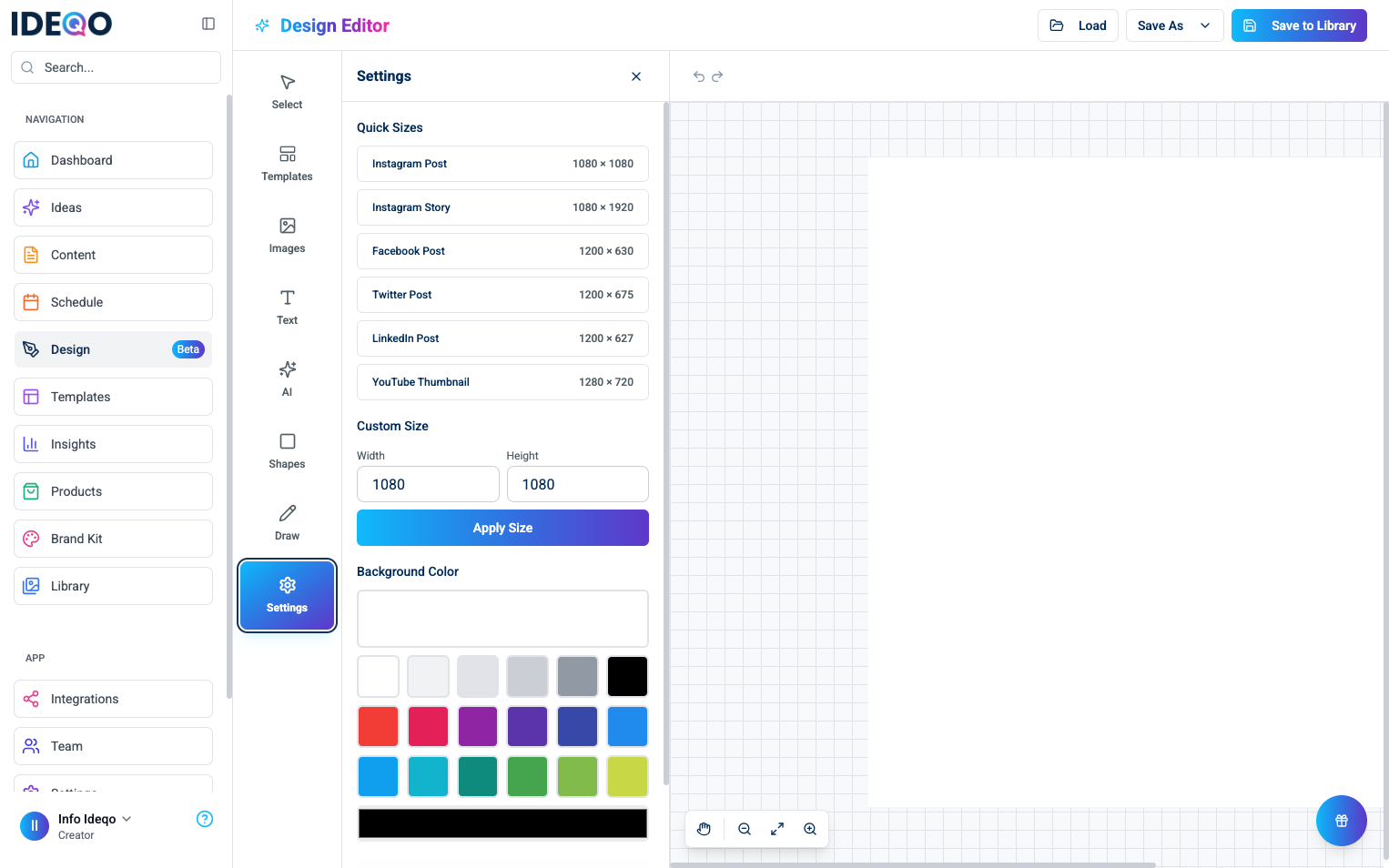
Canvas Size
Section titled “Canvas Size”Set your canvas dimensions to match your design requirements.
Quick Sizes (Presets)
Section titled “Quick Sizes (Presets)”Use preset sizes optimized for social media platforms:
- Instagram Post - 1080 × 1080 pixels (square)
- Instagram Story - 1080 × 1920 pixels (vertical)
- Facebook Post - 1200 × 630 pixels (landscape)
- Twitter Post - 1200 × 675 pixels (landscape)
- LinkedIn Post - 1200 × 627 pixels (landscape)
- YouTube Thumbnail - 1280 × 720 pixels (landscape)
To use a preset:
- Click a preset button in the Quick Sizes section
- Canvas resizes immediately
- Dimensions show on the button (e.g., “1080 × 1080”)
Custom Size
Section titled “Custom Size”Create a canvas with custom dimensions:
- Enter Width in pixels (minimum 100px, maximum 4,000px)
- Enter Height in pixels (minimum 100px, maximum 4,000px)
- Click Apply Size
- Canvas resizes to your specified dimensions
Background Color
Section titled “Background Color”Set the background color of your canvas:
Quick Colors
Section titled “Quick Colors”Choose from preset colors:
- Click a color square in the Quick Colors grid
- Background changes immediately
- Selected color highlights
Custom Color
Section titled “Custom Color”Choose any color:
- Use the Custom Color color picker at the bottom
- Click to open the color picker
- Select your desired color
- Background updates immediately
Best Practices
Section titled “Best Practices”Choosing Canvas Size
Section titled “Choosing Canvas Size”- Match Platform - Use presets that match your target platform
- Consider Content - Choose sizes that fit your content type
- Export Quality - Larger sizes = higher quality exports
- File Size - Larger canvases create larger export files
Background Color
Section titled “Background Color”- Match Brand - Use brand colors for consistency
- Contrast - Ensure background contrasts with content
- White/Black - Classic choices that work with any content
- Readability - Ensure text is readable on the background
When to Change Settings
Section titled “When to Change Settings”- Set Size First - Choose canvas size before adding content
- Background Early - Set background color before adding elements
- Use Presets - Presets ensure optimal dimensions for each platform
- Set Size First - Choose canvas size before adding content
- Use Presets - Presets ensure optimal dimensions for each platform
- Check Dimensions - Verify dimensions match your requirements before designing
- Background Early - Set background color before adding elements
- Save Presets - Create designs with your preferred settings
Troubleshooting
Section titled “Troubleshooting”Canvas Won’t Resize
Section titled “Canvas Won’t Resize”- Make sure dimensions are within limits (100-4,000px)
- Check that you clicked “Apply Size” for custom dimensions
- Verify you’re entering numbers, not text
Background Color Won’t Change
Section titled “Background Color Won’t Change”- Make sure Settings panel is open
- Try clicking a different color first
- Check that you’re clicking the color squares, not just the panel
Content Lost After Resizing
Section titled “Content Lost After Resizing”- Content outside new dimensions is lost when resizing
- Save your work before resizing if you’re unsure
- Use “Fit to Screen” to see all content before resizing
Dimensions Too Large/Small
Section titled “Dimensions Too Large/Small”- Minimum size: 100px × 100px
- Maximum size: 4,000px × 4,000px
- Use presets for standard sizes
- Consider export file size with very large canvases
What’s Next?
Section titled “What’s Next?”- Learn about Templates - Start with templates that match your canvas size
- Learn about Saving & Exporting - Export your designs in different formats
- Learn about Design Editor Overview - Review the basics
Need help? Contact support or check out our other design editor guides.