

Design Editor: Freehand Drawing Tool
Create freehand drawings and sketches directly on your canvas. Customize brush size and color to create unique illustrations and decorative elements.
Accessing the Draw Tool
Section titled “Accessing the Draw Tool”- Click Draw in the left sidebar
- The Draw panel opens in the sidebar
- Drawing mode activates automatically
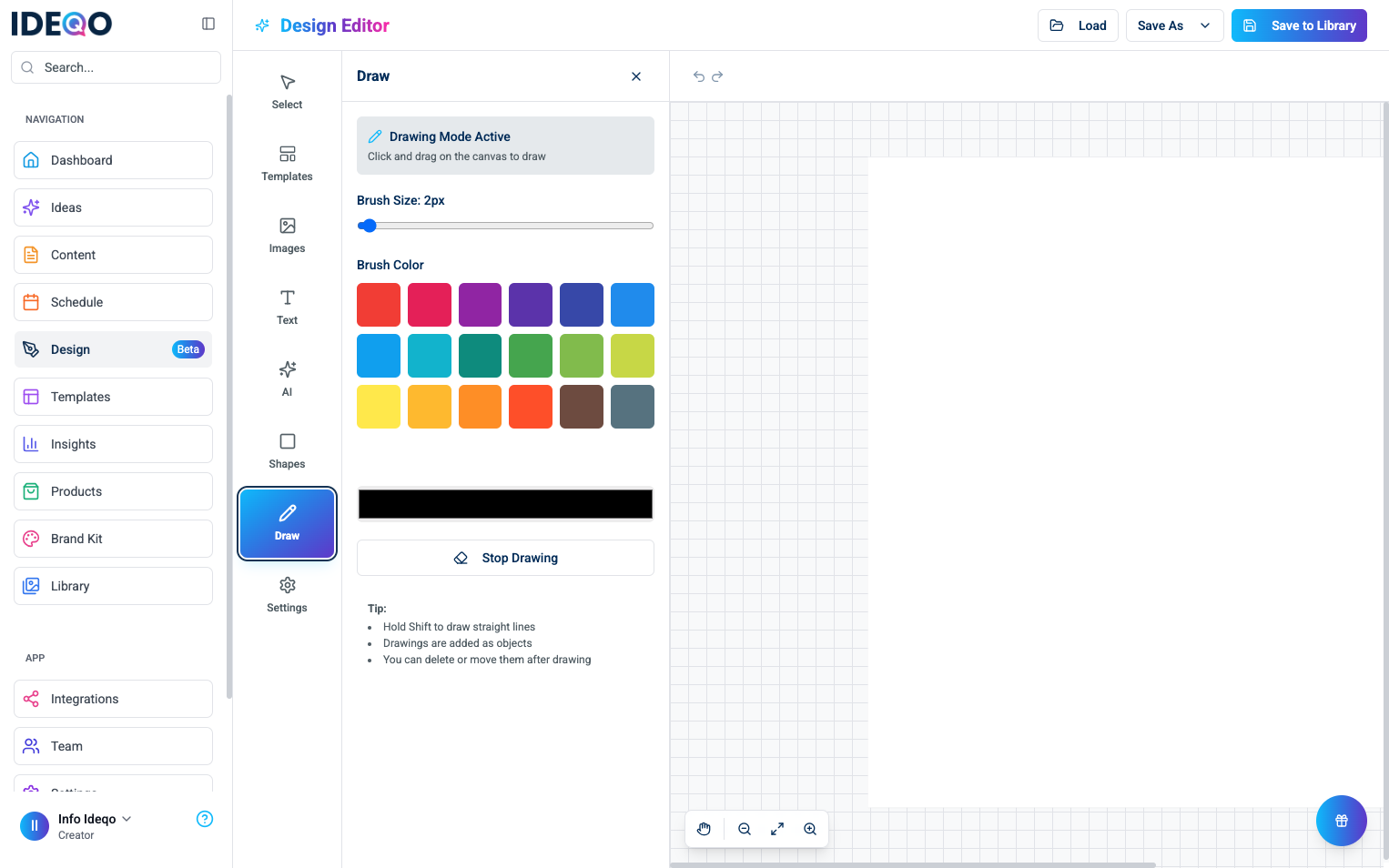
Drawing Mode
Section titled “Drawing Mode”When you click Draw, drawing mode enables automatically:
- Drawing Mode Active indicator appears in the panel
- You can immediately start drawing on the canvas
- Click and drag to draw
Drawing on the Canvas
Section titled “Drawing on the Canvas”Basic Drawing
Section titled “Basic Drawing”- Click and drag on the canvas to draw
- Release to finish a stroke
- Each stroke becomes a separate drawing object
- Continue drawing to add more strokes
Brush Settings
Section titled “Brush Settings”Customize your brush before or while drawing:
Brush Size
Section titled “Brush Size”Adjust the thickness of your brush:
- Use the Brush Size slider in the Draw panel
- Range: 1px to 50px
- Current size shows in the label
- Changes apply to new strokes immediately
Brush Color
Section titled “Brush Color”Choose your drawing color:
- Quick Colors - Click a color from the grid of preset colors
- Custom Color - Use the color picker at the bottom to choose any color
- Selected color highlights with a blue border
Working with Drawings
Section titled “Working with Drawings”Drawings as Objects
Section titled “Drawings as Objects”Each stroke you draw becomes a separate object:
- Select - Click “Stop Drawing” first, then click a drawing to select it
- Move - Drag selected drawings to reposition them
- Delete - Select and press Delete or use the delete button in the top toolbar
- Layer - Use Bring Forward/Send Backward in the top toolbar to change layer order
Editing Drawings
Section titled “Editing Drawings”- Resize - Select a drawing and drag corner handles
- Rotate - Use the rotate handle to rotate drawings
- Color - Select a drawing and use the Stroke tool in the top toolbar to change color
Multiple Strokes
Section titled “Multiple Strokes”- Each click-and-drag creates a new drawing object
- Draw multiple strokes to build up your illustration
- Layer strokes by drawing order (newer strokes appear on top)
Best Practices
Section titled “Best Practices”- Plan Your Drawing - Sketch ideas before starting
- Use Layers - Draw background elements first, details last
- Match Brush Size - Choose brush size appropriate for your drawing
- Consistent Colors - Stick to a color palette for cohesive designs
- Combine Tools - Use drawings with shapes and text for complete designs
- Small Brushes (1-5px) - Fine details and outlines
- Medium Brushes (6-15px) - General drawing and sketching
- Large Brushes (16-50px) - Bold strokes and fills
- Use Contrast - Choose colors that contrast with your background
- Use Undo - Press
Ctrl+Z/Cmd+Zto undo strokes - Save Often - Save your work regularly when drawing complex illustrations
- Stop Drawing - Click “Stop Drawing” when you want to select and move other elements
Troubleshooting
Section titled “Troubleshooting”Drawing Not Working
Section titled “Drawing Not Working”- Make sure drawing mode is active (check the indicator in the panel)
- Try clicking “Stop Drawing” and then clicking Draw again
- Check that you’re clicking and dragging on the canvas
Can’t Change Brush Color
Section titled “Can’t Change Brush Color”- Make sure the Draw panel is open
- Click a color in the quick colors grid
- Or use the color picker at the bottom
Drawing Too Thick/Thin
Section titled “Drawing Too Thick/Thin”- Adjust the Brush Size slider
- Try different sizes to find what works
- Remember: size applies to new strokes, not existing ones
Can’t Select Drawing
Section titled “Can’t Select Drawing”- Make sure you’ve finished the stroke (released mouse button)
- Click “Stop Drawing” to exit drawing mode
- Click directly on the drawing line
Drawing Disappears
Section titled “Drawing Disappears”- Check layer order (may be behind other elements)
- Use Bring Forward to move drawings to the front
- Verify opacity isn’t set to 0%
What’s Next?
Section titled “What’s Next?”- Learn about Styling & Effects - Apply effects to your drawings
- Learn about Shapes - Add geometric shapes
- Learn about Saving & Exporting - Save your drawings
Need help? Contact support or check out our other design editor guides.