

Queue and Slots
Learn about posting queues and automated time slots. View queue guide →
You’ll understand how to use IDEQO’s calendar to visualize your content schedule, switch between different views, and manage scheduled posts.
IDEQO’s calendar gives you a visual timeline of all your scheduled content. See what’s publishing when, across all platforms, in one unified view.
Access the calendar: Go to Scheduling in the main navigation.
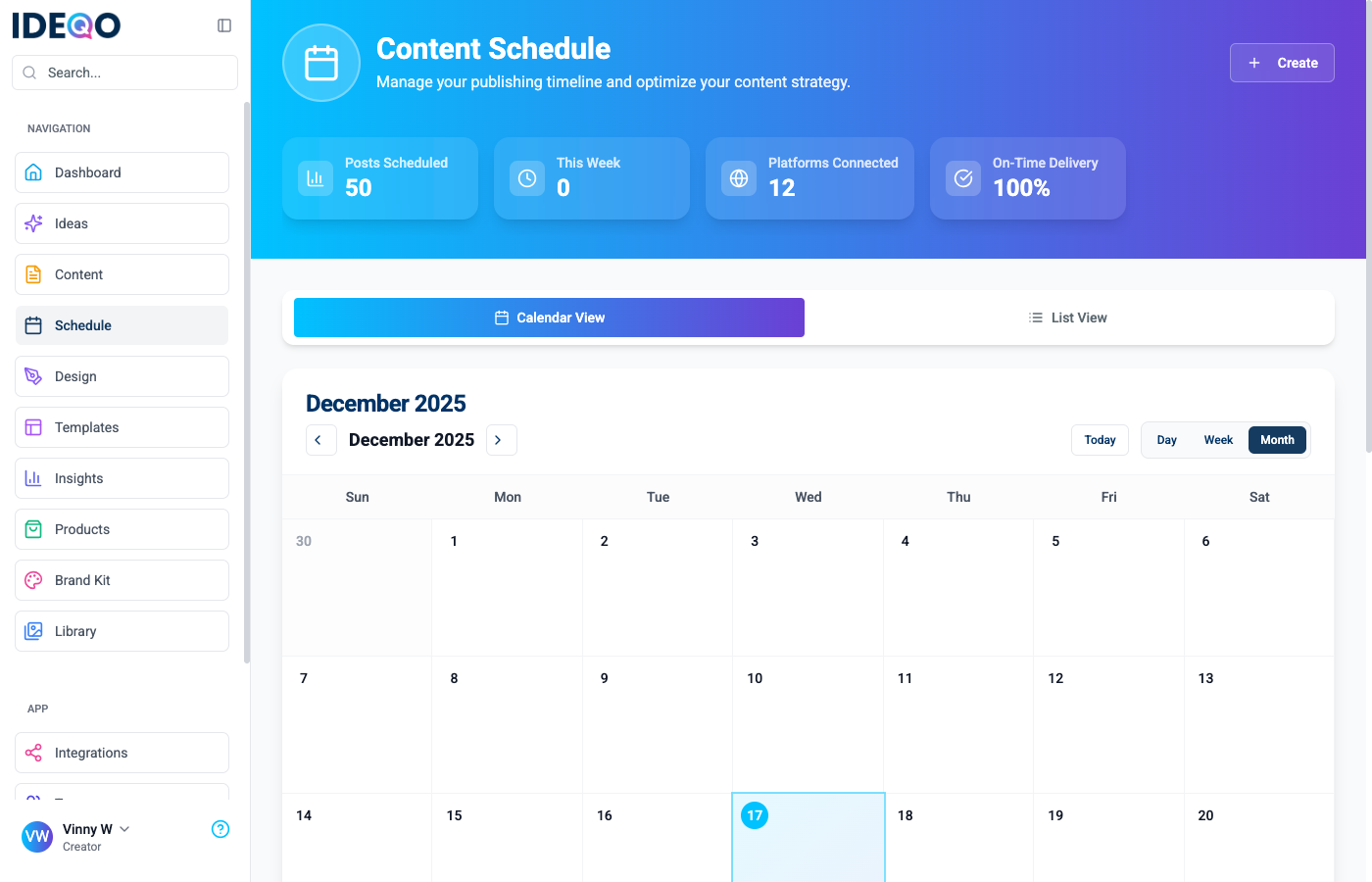
IDEQO offers three ways to view your schedule:
See your entire month at a glance. Each day shows:
Best for: Planning ahead and seeing the big picture.
Focus on a single week with more detail. See:
Best for: Weekly content planning and review.
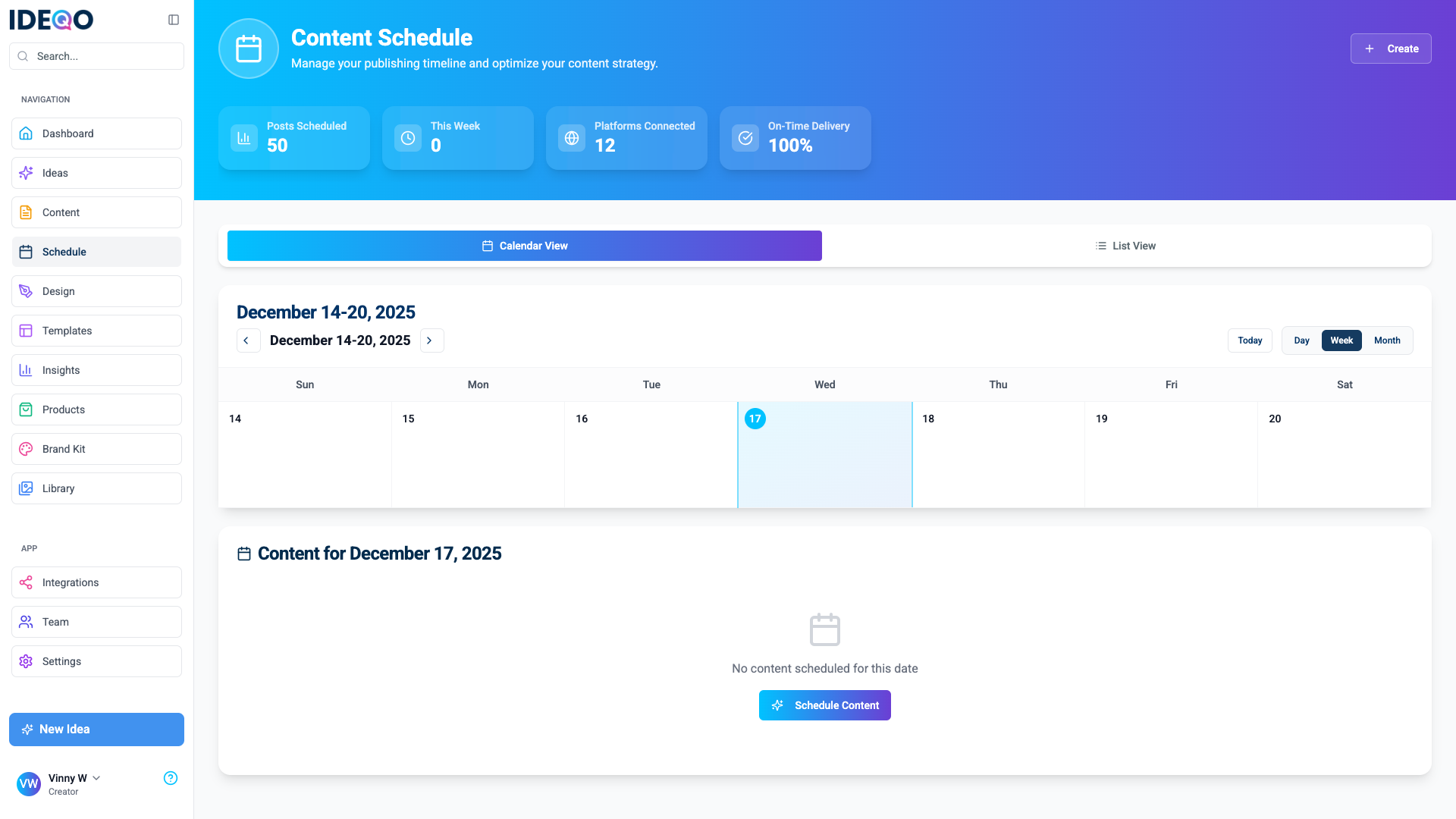
See all posts scheduled for a specific day in detail.
Best for: Daily content review and last-minute adjustments.
When you click a scheduled post, you’ll see:
Note: Canceling removes the post from your schedule but doesn’t delete the content itself.
Prefer a list? Switch to List View to see all scheduled posts in chronological order with:
Plan weeks ahead Use the month view to plan content for the entire month at once.
Review weekly Switch to week view every Monday to review and adjust the week ahead.
Color code by platform Use platform badges to quickly identify which platforms you’re posting to.
Check failed posts Regularly review failed posts to fix issues and reschedule.
Posts not showing on calendar → Make sure posts are scheduled (not saved as drafts). Only scheduled posts appear on the calendar.
Can’t see future months → Use the navigation arrows to move forward.
Post time seems wrong → Check your timezone settings in Settings > Account. Calendar displays times in your local timezone.
Learn about posting queues and automated time slots. View queue guide →
Add more integrations to see them all in your calendar. View integrations →
Questions? Contact support.