

Bulk Scheduling: Post Multiple Times at Once
Bulk scheduling lets you manage multiple scheduled posts at once. Instead of canceling posts one by one, you can select several posts and cancel them all together.
What Is Bulk Scheduling?
Section titled “What Is Bulk Scheduling?”Bulk scheduling means working with multiple scheduled posts at the same time. You can:
- Cancel multiple scheduled posts at once
This saves time when you need to remove many posts from your schedule.
Where to Find Bulk Operations
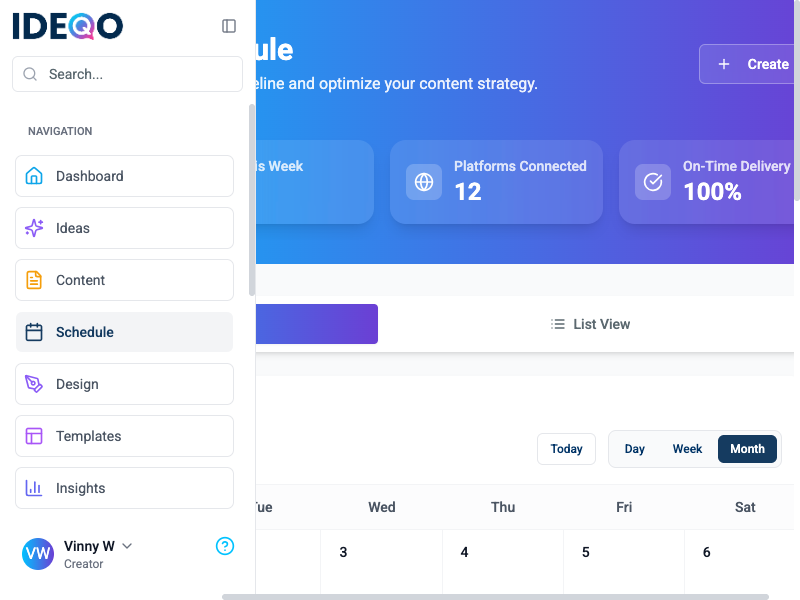
Section titled “Where to Find Bulk Operations”Bulk operations are available in the List View of your Scheduling page:
- Go to Scheduling from the main menu
- Switch to List View (if you’re in Calendar view)
- Click the Select button to enter selection mode
Selecting Posts
Section titled “Selecting Posts”Enter Selection Mode
Section titled “Enter Selection Mode”- In List View, click the Select button at the top
- Checkboxes appear next to each scheduled post
- You’re now in selection mode
Select Individual Posts
Section titled “Select Individual Posts”- Click the checkbox next to any post to select it
- Click again to deselect it
Select All Posts
Section titled “Select All Posts”- Click Select All to select every post on the current page
- Click Deselect All to clear your selection
Exit Selection Mode
Section titled “Exit Selection Mode”- Click Cancel or the X button to exit selection mode
- Your selections are cleared when you exit
Bulk Actions Available
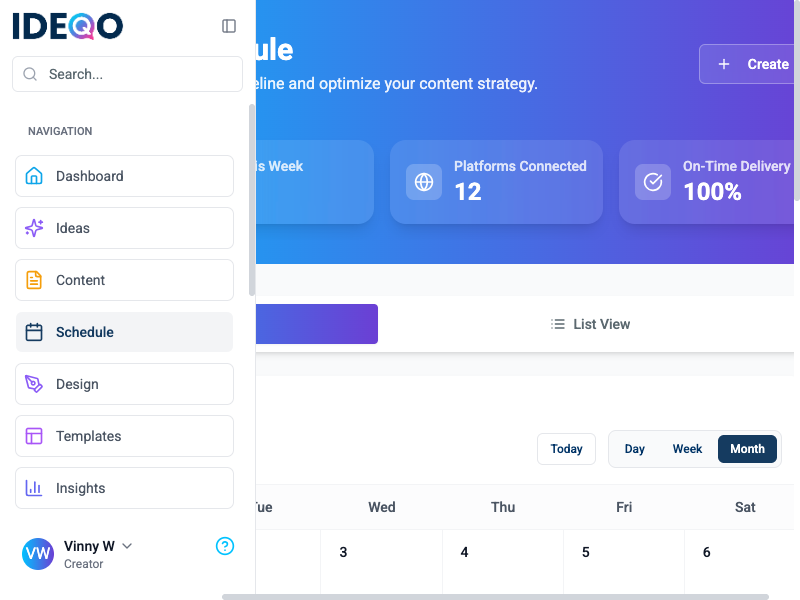
Section titled “Bulk Actions Available”Once you’ve selected posts, a floating action bar appears at the bottom of the screen showing how many posts you’ve selected.
Cancel Multiple Schedules
Section titled “Cancel Multiple Schedules”To cancel multiple scheduled posts at once:
- Select the posts you want to cancel
- Click Cancel Schedule in the floating action bar
- Confirm the cancellation in the dialog
All selected posts will be marked as cancelled. You can reschedule them later if needed.
Editing Individual Posts
Section titled “Editing Individual Posts”While bulk operations let you cancel multiple posts at once, you’ll need to edit posts individually:
- Click on a post to open its preview
- Click Edit to modify the content or schedule
- Make your changes and save
To reschedule multiple posts, cancel them in bulk, then edit and reschedule each one individually.
Best Practices
Section titled “Best Practices”-
Review before bulk actions - Make sure you’ve selected the right posts before canceling.
-
Start small - If you’re new to bulk operations, try selecting just a few posts first to get comfortable.
-
Check after bulk actions - After canceling multiple posts, review your calendar to make sure everything looks correct.
-
Reschedule canceled posts - Canceling removes posts from the active schedule, but you can reschedule them later.
Limitations
Section titled “Limitations”- One action at a time: You can only perform one type of bulk action at a time
- Scheduling new posts: Currently, you need to schedule posts one at a time. Bulk scheduling of new posts is coming soon
Common Questions
Section titled “Common Questions”Can I schedule multiple new posts at once?
Not yet. You need to schedule posts one at a time. Bulk scheduling for new posts is planned for a future update.
What happens if I cancel multiple posts?
All selected posts are marked as cancelled. They’re not deleted, so you can reschedule them later.
Can I undo a bulk action?
No, bulk actions can’t be undone. Make sure you want to proceed before confirming. If you cancel posts by mistake, you can reschedule them individually.
How many posts can I select at once?
You can select as many posts as you need from the current view.
Can I bulk reschedule posts to different times?
Bulk rescheduling to different times isn’t available yet. You can cancel multiple posts at once, then edit and reschedule each one individually. This gives you full control over each post’s schedule.
Related Features
Section titled “Related Features”- Calendar View - See all your scheduled posts visually
- Publishing Queue - Monitor posts as they’re being published
- Queue and Slots - Set up recurring schedule slots
Related guides: