You’ll connect your Instagram Business account to IDEQO and publish your first post. Once connected, you can schedule posts, Stories, and Reels weeks in advance.
Time required: 5-10 minutes
Prerequisites: Instagram Business or Creator account linked to a Facebook Page
Once connected, you can:
- Schedule posts, Stories, and Reels — Plan weeks ahead
- Auto-publish at optimal times — No manual posting required
- Track performance — See likes, comments, saves, and reach in one dashboard
- Maintain your grid aesthetic — Preview how posts look together
- Repurpose content — Turn one idea into multiple Instagram formats
Instagram must be set to Business or Creator mode. Here’s how to check:
- Open Instagram and go to your profile
- Tap the three lines (☰) in the top right
- Tap Settings and privacy
- Look for Account type and tools or Switch to Professional Account
If you see “Switch to Professional Account,” you’re on a personal account and need to convert.
- 1
In Instagram, go to Settings > Account
- 2
Tap Switch to Professional Account
- 3
Choose Business (or Creator if you're a personal brand)
- 4
Select your category (e.g., Clothing, Restaurant, Coach)
- 5
Connect to a Facebook Page (required for scheduling)
IDEQO connects through Facebook’s API, so your Instagram must be linked to a Facebook Page.
- Go to your Facebook Page
- Click Settings (bottom left)
- Click Instagram in the left sidebar
- Click Connect Account and log in to Instagram
- Your Instagram is now linked
Already linked? Great. Move to the next step.
- 1
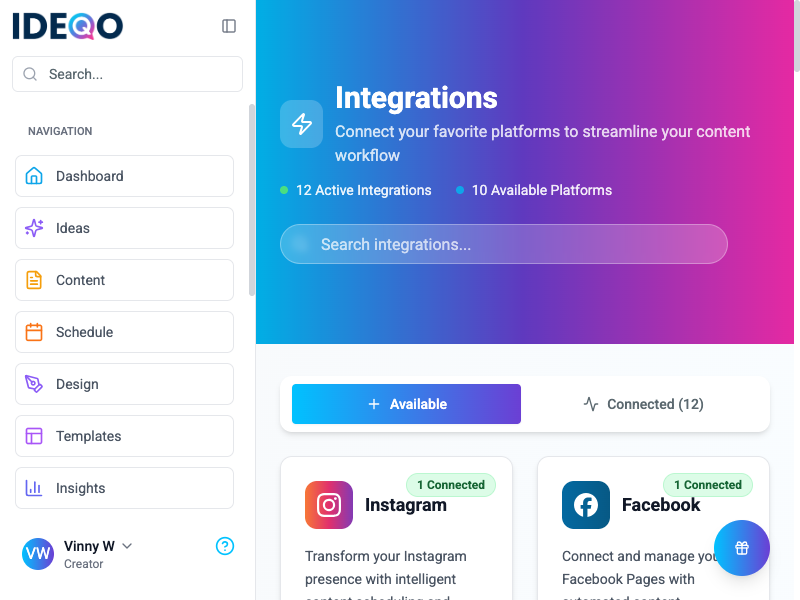
Open IDEQO Integrations
In your IDEQO dashboard, click Integrations in the sidebar.
- 2
Connect Instagram
Find the Instagram card under Available Integrations and click Connect.
- 3
Authorize Facebook
A popup opens asking you to log in to Facebook. Enter your credentials. (This is secure; IDEQO uses Facebook's official API.)
- 4
Grant Permissions
Facebook asks you to grant IDEQO permission to:
• Manage your Instagram account
• Publish posts and Stories
• Read insights and comments
Click Continue to allow all permissions.
- 5
Select Your Instagram Account
If you manage multiple Instagram accounts, select the one you want to connect. You can connect more accounts later.
- 6
Confirm Connection
IDEQO shows a success message. Your Instagram account now appears in the Connected tab.
Now that Instagram is connected, let’s schedule your first post.
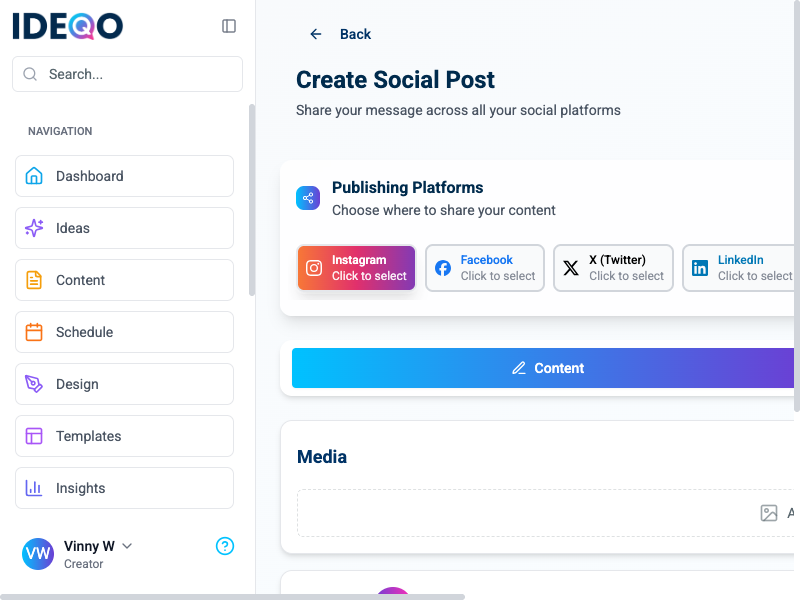
- In IDEQO, click Content > Create Post (or Create Social Post)
- In the “Publishing Platforms” section, select Instagram.
Option A: Write from Scratch
- Type your caption directly in the Content box.
- Click AI Assist if you want help refining tone or length.
- Drag and drop an image or video into the Media section (Instagram supports JPG, PNG, MP4).
Option B: Use a Template
- Click Choose Template (if available) to start with a pre-made design.
Option C: Use Product Context
- If you have Shopify connected, you can import product details to auto-generate a caption with “New drop: [Product Name]”.
- Add up to 30 hashtags in your caption.
- IDEQO saves your most-used hashtags in your Brand Kit for easy access.
Check the preview pane to see how your post looks on Instagram:
- Image isn’t cropped awkwardly (Instagram uses 1:1 or 4:5 ratio)
- Caption isn’t cut off (first 125 characters matter most)
To publish immediately:
Click Publish Now. IDEQO posts to Instagram within 30 seconds.
To schedule for later:
- Click Schedule
- Pick a date and time
- Click Schedule Post
Your post appears in the IDEQO calendar and publishes automatically at the scheduled time.
Feed Posts
Standard Instagram posts that appear in your grid and followers’ feeds.
- Supported: Images (JPG, PNG), videos (up to 60 seconds)
- Best for: Announcements, products, tips, behind-the-scenes
- Scheduling: Fully automated; posts publish at exact scheduled time
Stories
Temporary 24-hour posts that appear at the top of followers’ feeds.
- Supported: Images, videos (up to 15 seconds per segment), text overlays
- Best for: Polls, Q&As, behind-the-scenes, time-sensitive promos
- Scheduling: Fully automated; published as single story or series
Reels
Short-form vertical videos designed for discovery and entertainment.
- Supported: Videos (15-90 seconds), cover images, audio
- Best for: Tutorials, trends, product demos, storytelling
- Scheduling: Fully automated; Reels publish with cover and caption
Carousels
Multi-image posts users can swipe through (up to 10 images or videos).
- Supported: Mix of images and videos (each up to 60 seconds)
- Best for: Step-by-step guides, before/after, product collections
- Scheduling: Fully automated; all slides publish together
Post consistently, not constantly
3-5 posts per week beats daily low-quality posts. Use IDEQO’s calendar to space content evenly.
Post when your audience is active
Check Instagram Insights for peak times. IDEQO’s analytics can suggest optimal posting slots.
Front-load your caption
The first 125 characters show before “…more.” Hook readers immediately.
Use hashtags strategically
Mix popular hashtags (500k+ posts) with niche ones (10k-100k posts) to balance reach and relevance.
After connecting Instagram and scheduling a post:
- Go to Integrations and confirm Instagram shows as “Connected”.
- Open your Calendar in IDEQO and verify your scheduled post appears.
- If you scheduled a post for the next 5 minutes, wait and check your Instagram profile to confirm it published.
- Check Insights to see if IDEQO is pulling your recent post data.
If all four checks pass, you’re good to go.
Cause: Your Instagram isn’t linked to a Facebook Page, or you don’t have admin access.
Fix:
- Go to your Facebook Page
- Navigate to Settings > Instagram
- Connect your Instagram account
- Make sure you’re an admin of the Facebook Page
- Try connecting in IDEQO again
Cause: Facebook token expired, image doesn’t meet Instagram’s requirements, or your account hit rate limits.
Fix:
- Check IDEQO notifications for specific error message
- Common fixes:
- Re-authorize Instagram connection in Integrations
- Verify image is under 8MB and ratio is 1:1 or 4:5
- Wait 10 minutes if you hit rate limits (usually happens after 10+ posts in an hour)
See full publishing error guide →
Cause: Image resolution is too low or wrong aspect ratio.
Fix:
- Upload images at least 1080px wide
- Use 1:1 (square) or 4:5 (portrait) ratio for feed posts
- Use 9:16 (1080x1920px) for Stories and Reels
Cause: Your Instagram account doesn’t have Creator or Business access to advanced features.
Fix:
- Verify account type in Instagram settings
- Re-authenticate in IDEQO (Integrations > Instagram > Disconnect and Reconnect)
- If still failing, check if your Facebook Page is verified
See token refresh guide →
Now that Instagram is connected, expand your workflow:
Need help? Check troubleshooting or contact support.

