


A Shopify product video is a video file you attach to a product’s media, next to the photos. Shopify accepts MP4, MOV, or WebM up to 10 minutes, 1 GB, and 4K, converts it, and streams it on your product page at 480p, 720p, or 1080p (Shopify Help). Since September 15, 2026, Shopify’s Catalog API also returns that video to AI shopping agents and lets them filter for products that have one (Shopify Developer Changelog).
The same 20-second clip is also the raw material for a Reel, a TikTok, a Short, a video Pin, and a Shopify Post. Most stores shoot for one of those, post it once, and never put it on the product page. Shoot-Store-Show-Share fixes the order: film one vertical master, store it in Shopify first, make sure the store shows it, then cut the social versions from the file you already have.
Key Takeaways
- Shoot one vertical master with no burned-in text: 9:16, 1080 by 1920 or higher, 15 to 30 seconds, three beats (use, scale, detail). Shopify recommends 9:16 among its aspect ratios, and a clean master works on the product page and every platform.
- Store it in Shopify before anywhere else: Products > Media accepts video directly, the Shopify app can film straight into it, and Content > Files lets you download the original later. Basic plans get 250 videos and 3D models and 50 GB of video storage.
- Show it properly: keep an image first because the main media item appears on collection pages, cart, and checkout; replace the automatic thumbnail with a real frame; write alt text; confirm your theme supports video.
- Share the cuts, not a re-shoot: a 20-second clip clears Instagram’s 3-minute recommendation, TikTok’s 3-minute creator limit, YouTube Shorts’ 3-minute cap, Pinterest’s 4-second minimum, and Shopify Posts’ 2-minute limit.
- Embed the YouTube version back: external videos do not count against your Shopify video storage, and Shorts URLs work once you convert them to the standard watch format.
Why does the product page come before the social post?
Because the product page is the only place the clip can live permanently, and the only place every other channel can pull it from.
Shopify says using video, 3D models, and augmented reality on a product page can increase a customer’s confidence in your products (Shopify Help). That is the direct sales case. The indirect case is newer. On September 15, 2026, Shopify’s Catalog API started returning video and 3D model assets on products that have them, and added a filter so an agent can ask only for products with video (Shopify Developer Changelog). Shopify’s own note on who this serves: anyone building camera-first shopping, 3D viewers, or try-on cannot use a product without a renderable asset. A product with no video is invisible to that filter. If you sell through Agentic Storefronts, that is a reason to attach video to hero products before you worry about captions.
The operational case is simpler. Once the master is in Shopify, you can download the original, unoptimized file from Content > Files on desktop or in the Shopify app (Shopify Help). Your store becomes the archive. The clip you post to Reels in November comes from the same place as the one a new hire needs in March.
What this guide is not: a Reels strategy or a TikTok strategy. Those live in the Instagram Reels ops guide and the YouTube Shorts guide. This is the guide for the file underneath them.
The Shoot-Store-Show-Share framework
Shoot-Store-Show-Share runs once per hero product. The first two phases take an afternoon for ten products. The last two are what you repeat.
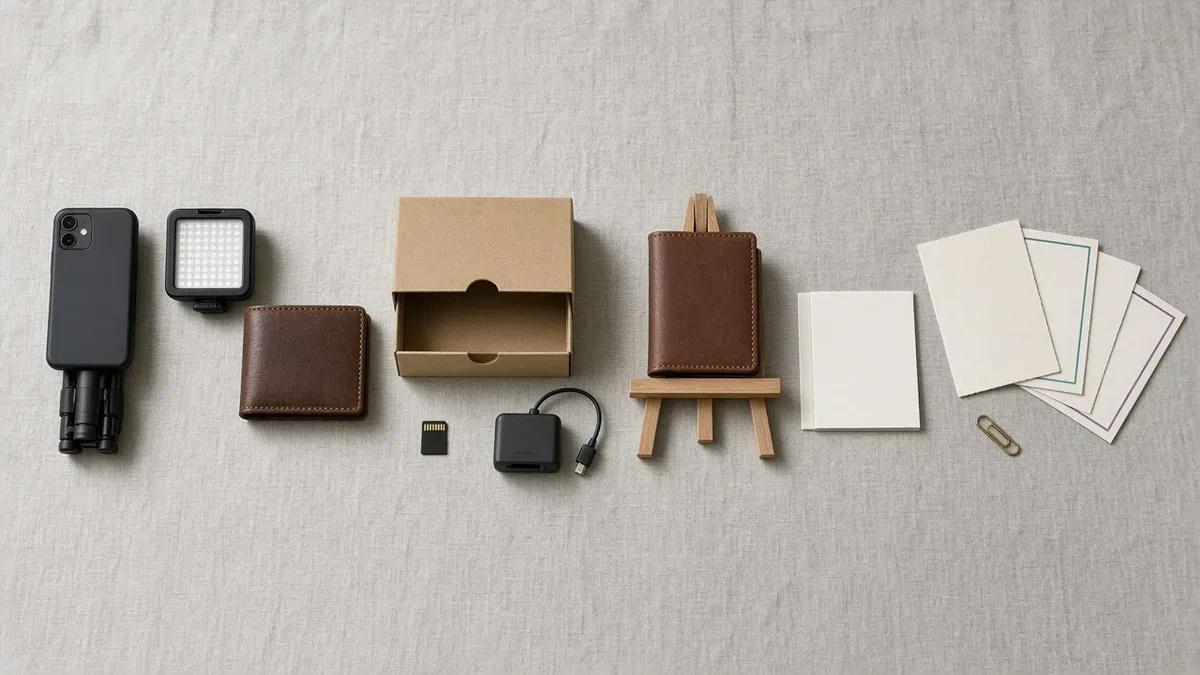
Phase 1: Shoot
Goal: one vertical master per product that works everywhere without a re-shoot.
Shopify’s recommended aspect ratios are 16:9, 9:16, 4:3, 3:4, and 1:1, its recommended resolutions run from 854 by 480 up to 3840 by 2160 with vertical orientation also recommended, and its recommended frame rates are 25, 30, and 60 fps with H.264 video and AAC, MP3, or Opus audio (Shopify Help). Most current phones shoot inside those numbers by default. The decisions that matter are orientation, length, and what you keep out of the frame.
Shoot checklist:
- Go vertical. 9:16 is on Shopify’s list, Instagram accepts Reels between 1.91:1 and 9:16 (Instagram Help), YouTube Shorts are vertical by definition (YouTube Help), and Pinterest recommends square or vertical video at 1:1, 2:3, 4:5, or 9:16 (Pinterest Business Help). One vertical master covers all of them. Check how your theme’s gallery displays a 9:16 file on desktop before you shoot the whole catalog; if it letterboxes, a 3:4 or 1:1 master may suit your product page better and still cut cleanly for social.
- Shoot at 1080 by 1920 or higher. Shopify caps playback at 1080p regardless of what you upload (Shopify Help), so 4K buys you cropping room, not sharper playback on the product page. Shoot 4K if your phone does it comfortably; it lets you punch in to a square crop for Pinterest or a feed post without going soft. Stay under 4096 pixels on either side, which is Shopify’s hard ceiling (Shopify Help).
- Keep it to 15 to 30 seconds. Longer clips are allowed everywhere, but a short master needs no trimming for any platform in the Share table below, and it keeps the file small against your storage cap.
- Film three beats. Use, scale, detail. Beat one, the product being used or handled for about 5 to 8 seconds. Beat two, the product next to something that shows its size, a hand, a mug, a doorway, for about 5 to 8 seconds. Beat three, a slow close-up of the texture, stitching, or mechanism for the rest. The order matters: the first frame is the hook on social and the still frame on the product page.
- No burned-in text, no music baked in. The same file plays on a product page where there is no caption track, no sticker, and often no sound. Text on the video would sit under platform buttons on TikTok and Instagram and look wrong in a silent gallery. Add captions, stickers, and audio inside each platform’s editor at the Share phase. Instagram, TikTok, YouTube, and Pinterest all have their own tools for that.
- Light it like your photos. If your product photos are shot on white or on your brand color, shoot the video on the same surface. The clip sits beside those photos in the gallery. Shopify Help makes the same point about images: a consistent aspect ratio across featured images keeps collection pages tidy (Shopify Help).
- Use the Shopify app if you want zero transfers. In the Shopify app, the Media section of a product has a Camera option to take a photo or video directly (Shopify Help). It is the fastest path for a stockroom clip of a new arrival, and you still get the original back from Files later.
Phase 2: Store
Goal: the master is in Shopify, within limits, named so you can find it.
Shopify’s hard limits for an uploaded video are 10 minutes, 1 GB, 4K resolution, and MP4, MOV, or WebM (Shopify Help). Shopify converts MOV and WebM and serves everything as MP4 or HLS. A 20-second phone clip is nowhere near any of those numbers. The limit that actually bites is the plan cap.
| Plan | Videos and 3D models per store | Video storage | General file storage |
|---|---|---|---|
| Starter, Basic, Retail, Pause and Build | 250 | 50 GB | 100 GB |
| Grow | 1,000 | 500 GB | 300 GB |
| Advanced | 5,000 | 500 GB | 500 GB |
| Plus | 50,000 | 2 TB | 1 TB |
| Enterprise | 100,000 | 10 TB | 10 TB |
Source: Shopify Help, video and 3D model limits and storage limits by plan (Shopify Help). Video storage is a separate pool from general file storage.
For a Basic store with 300 SKUs, 250 is the number to plan around. That is why this framework runs per hero product, not per catalog. Twenty bestsellers with a real video each beat 250 products with a rushed one.
Store checklist:
- Upload from Products > Media. On desktop, open the product, then Upload new, drag and drop, or Select existing to pull from Files. A product can hold up to 250 media items, but the plan cap on videos applies across the store (Shopify Help).
- Name the file before you upload it. Shopify adds a unique identifier to file names that collide with existing files or contain characters its CDN dislikes. Use descriptive names, keep them unique, and avoid an underscore right before dimensions (Shopify Help). Something like
oak-wallet-use-scale-detail-9x16.mp4is searchable in Files a year from now. - Batch through Files when you have many. Content > Files takes up to 20 files per upload and lets you filter by File type and by Used in, so you can see every video across every product in one view (Shopify Help).
- Know what a video cannot do. Shopify Help says 3D models and videos cannot be used as variant media (Shopify Help). If you sell six colors, the video goes on the product, not the variant. Shoot the bestselling color, or film a color lineup as beat two.
- Embed instead of upload when it makes sense. You can add a YouTube or Vimeo link as product media. The 10-minute and 1 GB limits do not apply to embeds, and Shopify’s developer documentation notes that external videos do not count against the store’s storage quota (Shopify Developer Docs). The video must be Public or Unlisted on YouTube, or allow embedding on Vimeo (Shopify Help). That is the fallback once a Basic store nears 250 items.
- Convert Shorts URLs. Shopify does not accept
youtube.com/shorts/links, but the same video works if you change the URL to the standardyoutube.com/watch?v=format with the same ID (Shopify Help). Your Short and your product page video can be one upload.
Phase 3: Show
Goal: the video actually plays on the product page, looks right in the gallery, and is described for people and machines.
Videos and 3D models display only on themes that support them. Shopify Help lists every Online Store 2.0 theme built by Shopify and every theme in the Horizon family, and says most recent third-party themes support them too, though an older version of a supported theme may need an update (Shopify Help). Check on a phone, not just desktop.
Show checklist:
- Keep an image in position one. The first media item is the main media, and Shopify Help says it appears on collection pages, the cart, checkout, and the home page (Shopify Help). Put the video second. Use the Manage media view to drag it there and to search or bulk-delete when a product has many files.
- Replace the automatic thumbnail. Shopify generates a thumbnail for every video and 3D model. Open the video from the product’s Media section, click the pencil icon next to the cover image, and choose your own (Shopify Help). Use a frame from beat one, or the product’s main photo, so the gallery strip stays consistent.
- Write alt text for the video. Alt text applies to media, not just images. Shopify recommends 125 characters or less, with a 512-character maximum, and it is shown if the media cannot load and read by assistive technology (Shopify Help). Describe the three beats in one sentence: what is being used, what shows its size, what the close-up reveals.
- Understand what your theme does with playback. Shopify-hosted videos can be rendered with autoplay, loop, muted, and controls attributes, and each is off by default until the theme turns it on (Shopify Developer Docs). Dawn, for example, shows a play icon over the video and has an Enable video looping setting in the product section (Shopify Dawn on GitHub). If your video ends on a still frame that loops well, turn looping on. If it ends mid-motion, leave it off.
- Check the Catalog side. The Catalog API returns video assets and lets agents filter for
videomedia as of September 15, 2026 (Shopify Developer Changelog). There is nothing to configure on the video itself; the point is that the product now qualifies for that filter. Note the video for your Agentic Storefronts checklist. - Download the original when you need it. Content > Files, click the file, click the download button, and the original unoptimized format saves to your device (Shopify Help). That is the file you cut from in Phase 4.
Phase 4: Share
Goal: one master, five platform versions, no re-shoot.
Every platform below has its own maximum. None of them is the problem for a 20-second clip. What differs is the recommended ratio, the frame-rate floor, and what the platform does with anything longer.
| Where it goes | Length that fits | Ratio and size | What the platform says |
|---|---|---|---|
| Instagram Reels | Under 3 minutes | 1.91:1 to 9:16; minimum 30 fps and 720 px | Reels over 3 minutes are not recommended to new audiences (Instagram Help); size rules from Instagram Help |
| TikTok | Under 3 minutes | 360 to 4096 px each side; 23 to 60 fps; MP4 and H.264 recommended; 4 GB max | All creators can post 3-minute videos, some 5 or 10; third-party tools can send up to 10 minutes (TikTok for Developers) |
| YouTube Shorts | Up to 3 minutes | Vertical; maximum upload resolution 1080p | Shorts creation tools make videos up to 3 minutes (YouTube Help) |
| Pinterest video Pin | 4 seconds to 15 minutes; 6 to 15 seconds recommended for ads | 1:1, 2:3, 4:5, or 9:16 recommended; MP4, MOV, or M4V; H.264 or H.265; 2 GB max | Standard width video specs cover Pins used for ads or organic impressions (Pinterest Business Help) |
| Shopify Posts in Shop | Up to 2 minutes | 100 MB max | Manual Posts accept an image or video up to two minutes (Shopify Help) |
Share checklist:
- Post the master as-is to Reels, TikTok, and Shorts. Same file, same three beats. Add the caption, the product tag, and any on-screen text inside each app. The Reels guide covers hooks and product tags; the Shorts guide covers tagging for YouTube Shopping.
- Cut a 6 to 15 second version for Pinterest. Pinterest’s recommended length for video ads is 6 to 15 seconds, and its standard width video specs cover organic Pins too (Pinterest Business Help). Beat three, the slow detail shot, usually makes the best Pin because Pinterest is a search surface and the close-up matches a product query. If you shot 4K, crop to 2:3 or 1:1 here.
- Turn the Short into your product page embed if storage is tight. Once the Short is live and set to Public or Unlisted, convert its URL to the watch format and add it from URL in the product’s Media section. It does not count against your video storage.
- Make it a Shopify Post. A Post can carry the same clip, up to 2 minutes and 100 MB, with products tagged for the Shop feed (Shopify Help). The Shopify Posts guide covers connecting Instagram so Reels import automatically.
- Pull stills from the master. The beat-one frame is your Reel cover, and Instagram’s recommended cover size is 420 by 654 pixels (Instagram Help). The beat-three frame is a carousel slide. Turn those into the feed and Story formats you already make from photos.
- Schedule the set as one dated task. One product, five outputs, one line in the calendar. If your posting runs through a scheduler that connects to your Shopify store, the video sitting on the product means the tool can publish the video file directly from your catalog instead of a photo slideshow.
Which products get a video first?
Not all of them. On a Basic plan the cap is 250 videos and 3D models combined, so the order matters.
| Priority | Product type | Why video earns its slot |
|---|---|---|
| 1 | Bestsellers with questions in reviews about size, fit, or feel | Beat two answers the size question; beat three answers feel |
| 2 | Products with moving parts, textures, or transformations | A bag that opens, a candle that burns, a fabric that drapes |
| 3 | Products you are about to launch | The launch plan needs clips anyway; shoot the master first |
| 4 | Gift guide and BFCM heroes | Your gift guide and BFCM posts reuse the same file through December |
| 5 | Flat, simple products that photograph well | Photos already do the job; skip until the cap allows |
Run Shoot and Store for the top two tiers in one afternoon. Everything else waits for the next session.
Mistakes that waste a good clip
Shooting for one platform. A TikTok with baked-in text and a trending sound cannot go on the product page or be re-cut for Pinterest without looking like a repost. Master first, platform edits second.
Putting the video first in the media list. The main media item is used on collection pages, cart, and checkout (Shopify Help). Keep a still image there.
Leaving the auto-generated thumbnail. It is whatever frame Shopify grabbed. Replace it with a frame you chose.
Uploading the same clip to every variant. You cannot; videos are not variant media. One video per product, so make it the one that sells.
Adding videos to 300 products on a Basic plan. The cap is 250 videos and 3D models. Plan the order.
Pasting a Shorts URL. It will not embed. Change it to the standard watch URL with the same video ID.
Skipping alt text on video. It is a field on every media item, it helps assistive technology, and it takes fifteen seconds.
FAQ
What are Shopify’s product video requirements?
Shopify Help lists a maximum length of 10 minutes, a maximum file size of 1 GB, resolution up to 4K (4096 by 2160 pixels), and MP4, MOV, or WebM files. Shopify’s file requirements add a minimum of 100 pixels and a maximum of 4096 pixels on each side, a frame rate up to 120 fps, and a minimum length of 0.25 seconds. Shopify recommends 16:9, 9:16, 4:3, 3:4, or 1:1 aspect ratios, H.264 video with AAC, MP3, or Opus audio, and 25, 30, or 60 fps. Whatever you upload, Shopify converts it and serves MP4 or HLS at 480p, 720p, or 1080p.
How many videos can I add to Shopify products on the Basic plan?
Shopify Help gives a combined limit of 250 videos and 3D models per store on Starter, Basic, Retail, and Pause and Build plans, with 50 GB of video storage that is separate from the 100 GB general file limit. Grow allows 1,000 items and 500 GB, Advanced 5,000 items and 500 GB, Plus 50,000 items and 2 TB, and Enterprise 100,000 items and 10 TB. Embedded YouTube and Vimeo videos do not count toward the storage quota, so they are the fallback once you hit the cap.
Can I add a YouTube Short to a Shopify product page?
Yes, with one change to the URL. Shopify Help says YouTube Shorts URLs in the youtube.com/shorts/ format are not supported when you add a video from URL, but you can convert them to the standard youtube.com/watch?v= format with the same video ID and they will embed. The video must be set to Public or Unlisted. Vimeo videos must allow embedding on external sites.
Why does my product video not show on my Shopify product page?
The most common reason is the theme. Shopify Help says videos and 3D models display only on themes that support them: every Online Store 2.0 theme built by Shopify, every Horizon family theme, and most recent third-party themes. Older versions of supported themes may need an update. Two other limits apply: videos and 3D models cannot be assigned as variant media, and a video placed first in the media list becomes the main media that collection pages, cart, and checkout use, so keep an image in position one and put the video second.
How long should a Shopify product video be for social media?
Shoot a 15 to 30 second master and let each platform trim it. Instagram says Reels over 3 minutes are not recommended to new audiences. TikTok’s developer documentation says all creators can post 3-minute videos and third-party tools can send up to 10 minutes. YouTube Shorts run up to 3 minutes. Pinterest video Pins accept 4 seconds to 15 minutes and Pinterest recommends 6 to 15 seconds for video ads. Shopify Posts in the Shop app accept videos up to 2 minutes and 100 MB. A 20-second clip clears every one of those limits without a recut.
Start Shoot-Store-Show-Share this week
- Shoot: Pick your top five bestsellers. Film one vertical 15 to 30 second master each, three beats, no text, no music.
- Store: Name the files, upload them from Products > Media or straight from the Shopify app camera, and note how many of your plan’s video slots are left.
- Show: Move each video to position two, replace the thumbnail, write alt text, and check the product page on a phone.
- Share: Post the master to Reels, TikTok, and Shorts, cut a 6 to 15 second Pin, make a Shopify Post, and add the Short back to the product page as an embed if storage is tight.
Five products, one afternoon of filming, and every one of them is now a video product on the storefront, in a Shopify Post, and to any agent that filters for one.
If you want the posts built on those clips planned in one place, IDEQO connects to your Shopify store and pulls in your product photos, descriptions, and prices, so a master clip on the product can become the week’s Reels, TikTok, and Pin tasks in IDEQO’s content calendar. Start free with IDEQO. Free plan available. No credit card required.
Frequently Asked Questions
What are Shopify's product video requirements?
Shopify Help lists a maximum length of 10 minutes, a maximum file size of 1 GB, resolution up to 4K (4096 by 2160 pixels), and MP4, MOV, or WebM files. Shopify's file requirements add a minimum of 100 pixels and a maximum of 4096 pixels on each side, a frame rate up to 120 fps, and a minimum length of 0.25 seconds. Shopify recommends 16:9, 9:16, 4:3, 3:4, or 1:1 aspect ratios, H.264 video with AAC, MP3, or Opus audio, and 25, 30, or 60 fps. Whatever you upload, Shopify converts it and serves MP4 or HLS at 480p, 720p, or 1080p.
How many videos can I add to Shopify products on the Basic plan?
Shopify Help gives a combined limit of 250 videos and 3D models per store on Starter, Basic, Retail, and Pause and Build plans, with 50 GB of video storage that is separate from the 100 GB general file limit. Grow allows 1,000 items and 500 GB, Advanced 5,000 items and 500 GB, Plus 50,000 items and 2 TB, and Enterprise 100,000 items and 10 TB. Embedded YouTube and Vimeo videos do not count toward the storage quota, so they are the fallback once you hit the cap.
Can I add a YouTube Short to a Shopify product page?
Yes, with one change to the URL. Shopify Help says YouTube Shorts URLs in the youtube.com/shorts/ format are not supported when you add a video from URL, but you can convert them to the standard youtube.com/watch?v= format with the same video ID and they will embed. The video must be set to Public or Unlisted. Vimeo videos must allow embedding on external sites.
Why does my product video not show on my Shopify product page?
The most common reason is the theme. Shopify Help says videos and 3D models display only on themes that support them: every Online Store 2.0 theme built by Shopify, every Horizon family theme, and most recent third-party themes. Older versions of supported themes may need an update. Two other limits apply: videos and 3D models cannot be assigned as variant media, and a video placed first in the media list becomes the main media that collection pages, cart, and checkout use, so keep an image in position one and put the video second.
How long should a Shopify product video be for social media?
Shoot a 15 to 30 second master and let each platform trim it. Instagram says Reels over 3 minutes are not recommended to new audiences. TikTok's developer documentation says all creators can post 3-minute videos and third-party tools can send up to 10 minutes. YouTube Shorts run up to 3 minutes. Pinterest video Pins accept 4 seconds to 15 minutes and Pinterest recommends 6 to 15 seconds for video ads. Shopify Posts in the Shop app accept videos up to 2 minutes and 100 MB. A 20-second clip clears every one of those limits without a recut.