

Key Takeaways
- You need an Instagram Business or Creator account with a connected Facebook Page before any automation tool will work. Personal accounts cannot connect to third-party publishing tools.
- Generic schedulers like Buffer and Later don’t connect to your Shopify catalog. You need a tool built for ecommerce that pulls product data directly.
- Brand Kit setup takes 20 minutes, once. Every automated post after that applies your colors, logo, and fonts without additional work.
- Three to five posts per week is a solid baseline. More is not always better for organic reach.
- IDEQO’s free plan includes one Shopify connection and one Instagram automation at no cost.
Instagram is one of the highest-converting social channels for Shopify stores. Product posts drive profile visits, link-in-bio clicks, and direct sales. The problem is that posting consistently takes time most store owners do not have.
Manually creating a new graphic for every product, writing a caption, and posting at the right time adds up fast. If you have 50 products and want to post each one once a month, that is 12 posts per week across formats and platforms.
This guide walks through how to set up automatic Instagram posting from your Shopify catalog, what tools make it possible, and how to keep posts on-brand when the process is automated.
What “Auto-Posting Shopify Products to Instagram” Actually Means

Before getting into setup, it helps to be clear on what this workflow does and does not do.
What it does:
- Connects your Shopify product catalog to an automation tool
- Pulls product images, titles, prices, and descriptions automatically
- Generates posts (image, caption, hashtags) from your product data
- Schedules and publishes to Instagram on a timetable you set

What it does not do:
- Guarantee sales from every post (content quality and account engagement still matter)
- Replace the need to set up your brand identity once (Brand Kit, Brand Voice)
- Work without a connected Instagram Business or Creator account
The setup takes 20 to 30 minutes. After that, new products and catalog items can be pushed to Instagram automatically with minimal manual input.
If you want to expand beyond Instagram and auto-post Shopify products across TikTok, Facebook, and Pinterest at the same time, this guide covers the full multi-platform workflow.
What You Need Before You Start
Instagram Business or Creator account. Personal accounts cannot connect to third-party scheduling tools. If you have a personal account, switch it to a Business or Creator account in your Instagram settings. It takes about two minutes.
Facebook Page connected to your Instagram. Instagram’s API requires a connected Facebook Page to enable third-party publishing. Go to Instagram Settings > Account > Linked Accounts and connect your Facebook Page.
Shopify store. Your products need to be in Shopify with images, titles, and descriptions filled in. Posts generated from product data will only be as good as the data you have.
A tool with Shopify catalog integration. Generic schedulers like Buffer or Later do not connect to your Shopify product catalog. You need a tool built for ecommerce that can pull product data directly.
Step 1: Choose a Tool That Connects Shopify to Instagram
This is the most important decision. Not all social media tools have real Shopify catalog integration.
Tools that connect to Shopify and auto-post to Instagram:
IDEQO is built specifically for Shopify and ecommerce stores. It connects to your catalog, pulls product data, and generates posts using your Brand Kit (your colors, logo, and fonts applied automatically). Brand Voice AI writes captions in your store’s tone, so you are not editing generic product descriptions into marketing copy.
The free plan includes 1 Shopify store connection and 1 social media automation. Paid plans start at $15/month billed annually.
Xyla AI (formerly Socialit) connects to Shopify and runs on a more hands-off autopilot model. It generates and publishes product posts automatically without requiring manual review. Less brand control, more pure automation.
Outfy connects to your product catalog and posts to Instagram on a credits-based schedule. Template-driven, no Brand Kit, but reliable automation for stores with large catalogs.
Post Studio is a basic option for stores that want minimal setup and low cost. Pulls product images and basic captions, posts to Instagram automatically.
For this guide, we will use IDEQO since it covers catalog sync, brand controls, and caption quality in one workflow.
Step 2: Connect Your Shopify Store to IDEQO
Go to app.ideqo.com/register and create a free account.
From the dashboard, go to Settings > Integrations and click Connect Shopify. You will be redirected to authorize IDEQO in your Shopify admin. Click Install and return to IDEQO.
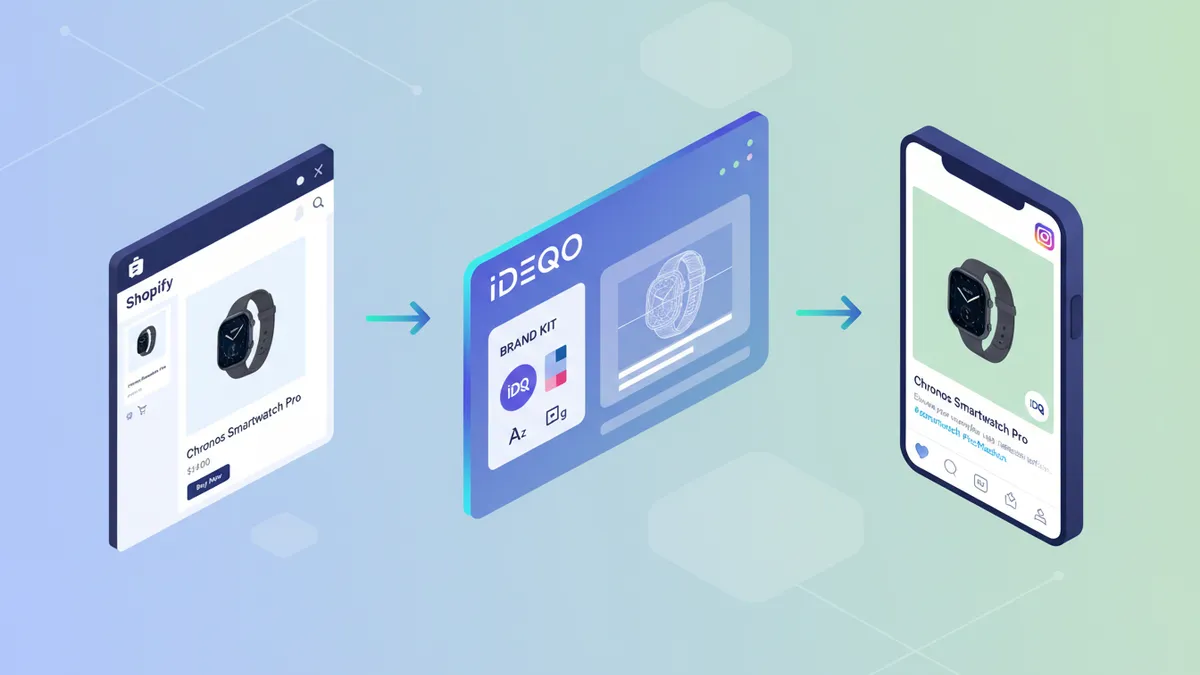
Your full product catalog is now available inside IDEQO. Collections, product images, titles, prices, and descriptions sync automatically. When you add new products to Shopify, they appear in IDEQO without any manual import step.
Step 3: Connect Your Instagram Account
In IDEQO, go to Settings > Social Accounts and click Connect Instagram.
You will be prompted to log in with Facebook (since Instagram publishing requires a connected Facebook Page). Select your Facebook Page, then select the Instagram Business account attached to it.
Once connected, you will see your Instagram account listed in your social accounts. IDEQO is now authorized to publish to your feed, stories, and Reels.
Step 4: Set Up Your Brand Kit
This step is what separates automated posts that look professional from ones that look like they were generated by a bot.
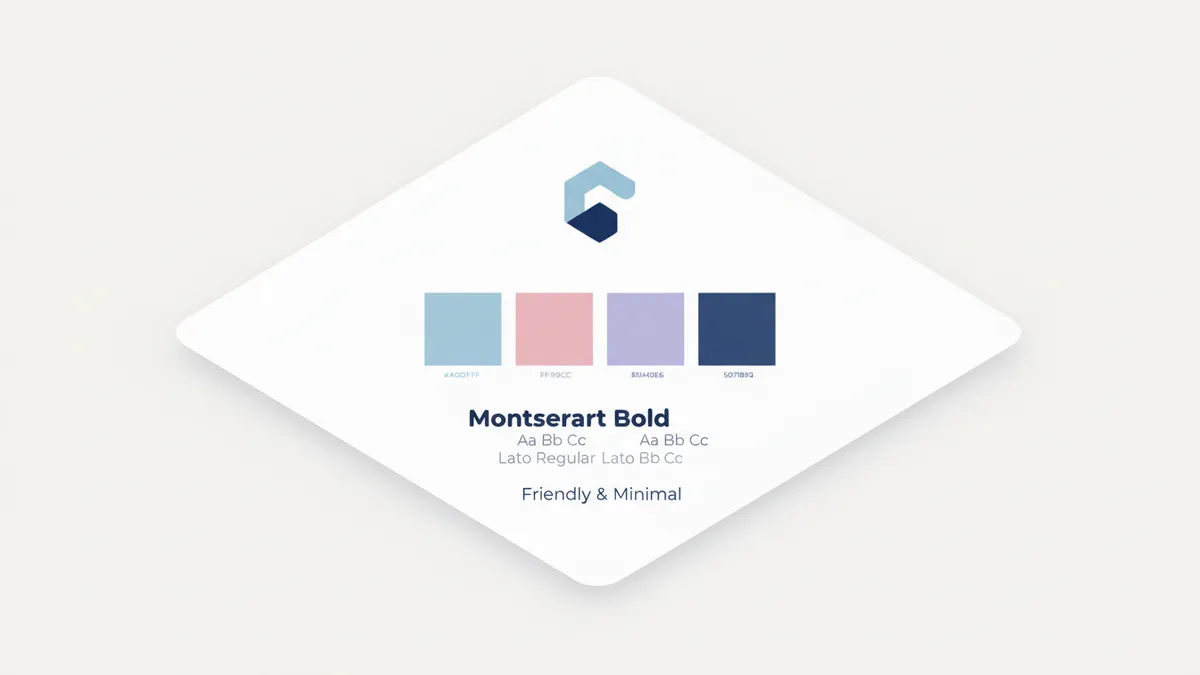
Go to Brand > Brand Kit and configure:
- Logo (transparent PNG, ideally square or horizontal)
- Primary and secondary colors (your hex codes)
- Fonts (upload your brand fonts or pick from the available library)
- Brand Voice (a brief description of your tone: “friendly and minimal,” “bold and direct,” “warm and conversational”)
Every post IDEQO generates for Instagram will apply your Brand Kit automatically. Your colors appear in the post background and accents. Your logo appears in a consistent position. Your captions are written in your Brand Voice.
Set this up once. It applies to every post after that.
Step 5: Create Your First Instagram Automation
Go to Automations > New Automation and select Instagram as your target platform.
Configure the automation:
Product source. Choose which products to pull from: all products, a specific collection (new arrivals, bestsellers, sale items), or a manual selection. For most stores, starting with your bestsellers or newest arrivals collection works well.
Posting frequency. How often do you want new product posts going out? Once per day, three times per week, five times per week. More is not always better. Three to five Instagram posts per week is a solid baseline for a store building organic reach.
Posting times. Set the times when posts go live. For Instagram, late morning (10am to 11am) and early evening (6pm to 8pm) tend to perform well, but your audience analytics will show what works for your specific followers once you have data.
Caption format. IDEQO generates captions from your product data using Brand Voice AI. You can set a format preference (short and punchy, longer with product details, with or without hashtags) or let the AI decide based on the product type.
Once the automation is live, IDEQO pulls from your selected product source, generates posts with your Brand Kit applied, and publishes to Instagram on your set schedule without requiring manual action.
Step 6: Review and Refine
For the first week or two, check your Instagram feed after posts go live. Look for:
Caption quality. Are captions accurate and on-brand? If not, adjust your Brand Voice description or edit individual captions before they post.
Image quality. Posts should use your best product images. If a product’s Shopify photos are low-resolution or poorly lit, update them in Shopify and IDEQO will pull the new versions.
Posting overlap. If you are also posting manually or running Stories separately, make sure automated product posts are not crowding out other content types. The automation handles product posts. Use manual slots for UGC, behind-the-scenes, and promotional announcements.
After a few weeks, look at your Instagram analytics. Which product posts get the most engagement? Which captions drive the most profile visits? Use those signals to refine your product selection and caption format.
Common Questions About Auto-Posting Shopify Products to Instagram
Will Instagram penalize scheduled or automated posts?
No. Instagram does not penalize posts published through authorized third-party tools. What affects reach is content quality, posting frequency, and engagement rate. A well-branded automated post performs the same as a manually uploaded one.
Can I auto-post Instagram Reels from my Shopify products?
Yes. IDEQO supports Reels scheduling for video content from your catalog. If you have product video content in Shopify, IDEQO can generate Reel posts and publish them on your set schedule.
What happens when I add new products to Shopify?
New products sync to IDEQO automatically. If your automation is set to pull from “all products” or “new arrivals,” new items will be picked up and queued for posting without you doing anything.
Can I approve posts before they go live?
Yes. IDEQO offers both fully automatic publishing and a review-before-publish mode. In review mode, you get a notification when a post is ready, review and approve it, and it goes live at the scheduled time. Useful when you want to check captions on new product launches.
How many Instagram posts per week is ideal for Shopify stores?
Three to five posts per week is the standard recommendation for stores building organic reach. Daily posting can work if your content quality is consistent. Posting fewer than three times per week makes it harder for the algorithm to show your content to new audiences.
Do I need to tag products in Instagram Shopping for this to work?
No. Product tagging in Instagram Shopping is a separate feature from scheduling and auto-posting. IDEQO posts product content to your Instagram feed regardless of whether you have Instagram Shopping set up. If you do have Instagram Shopping enabled, you can add product tags manually after a post goes live.
What a Full Instagram Automation Looks Like
Once your automation is running, here is what the workflow looks like week to week:
- New products added to Shopify: They appear in IDEQO automatically. If your automation covers new arrivals, they get queued for Instagram without you touching anything.
- Sale or promotion: Create a batch of sale posts in IDEQO, set them for the sale period, and they go live on schedule.
- Evergreen products: Your bestsellers and core catalog items rotate through the posting queue on your set frequency.
- Manual posts: You can still create one-off posts for specific moments (a customer photo, a team post, a milestone). These slot in alongside the automated product content.
The goal is a feed that stays active and looks consistent without requiring daily attention. Automation handles the product content. You handle the moments that matter personally.
Ready to connect your Shopify store and start posting automatically? Start free with IDEQO and have your first Instagram automation running in under 30 minutes.
Frequently Asked Questions
Will Instagram penalize scheduled or automated posts?
No. Instagram does not penalize posts published through authorized third-party tools. What affects reach is content quality, posting frequency, and engagement rate. A well-branded automated post performs the same as a manually uploaded one.
What happens when I add new products to Shopify?
New products sync to IDEQO automatically. If your automation is set to pull from all products or new arrivals, new items are picked up and queued for posting without any manual action.
Can I approve posts before they go live?
Yes. IDEQO offers both fully automatic publishing and a review-before-publish mode. In review mode, you get a notification when a post is ready, approve it, and it goes live at the scheduled time.
How many Instagram posts per week is right for Shopify stores?
Three to five posts per week is the standard recommendation for stores building organic reach. Daily posting can work if content quality is consistent. Posting fewer than three times per week makes it harder for the algorithm to show your content to new audiences.
Do I need Instagram Shopping set up for this to work?
No. Product tagging in Instagram Shopping is separate from scheduling and auto-posting. IDEQO posts product content to your Instagram feed regardless of whether you have Instagram Shopping enabled.