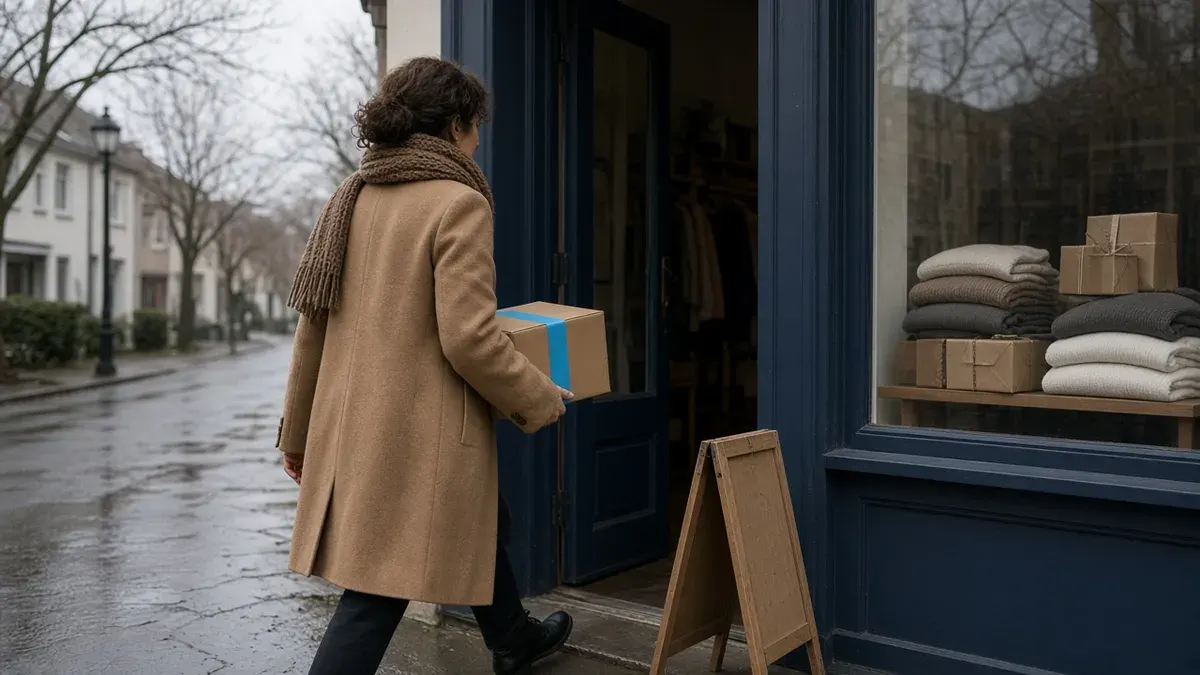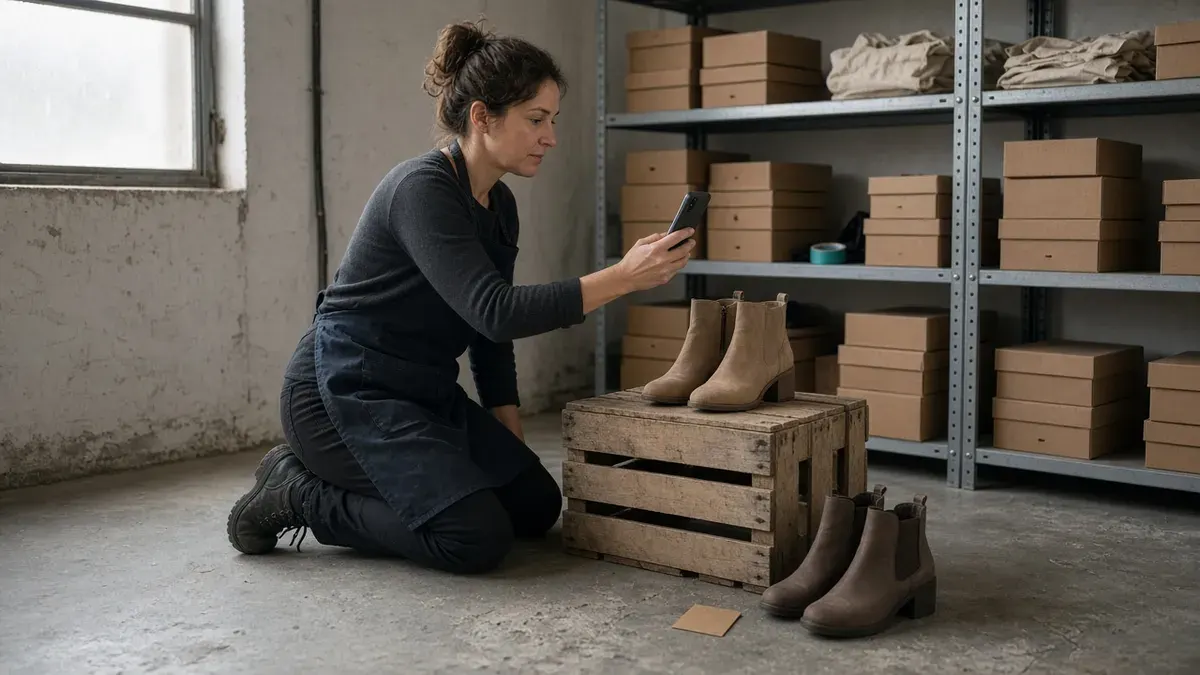

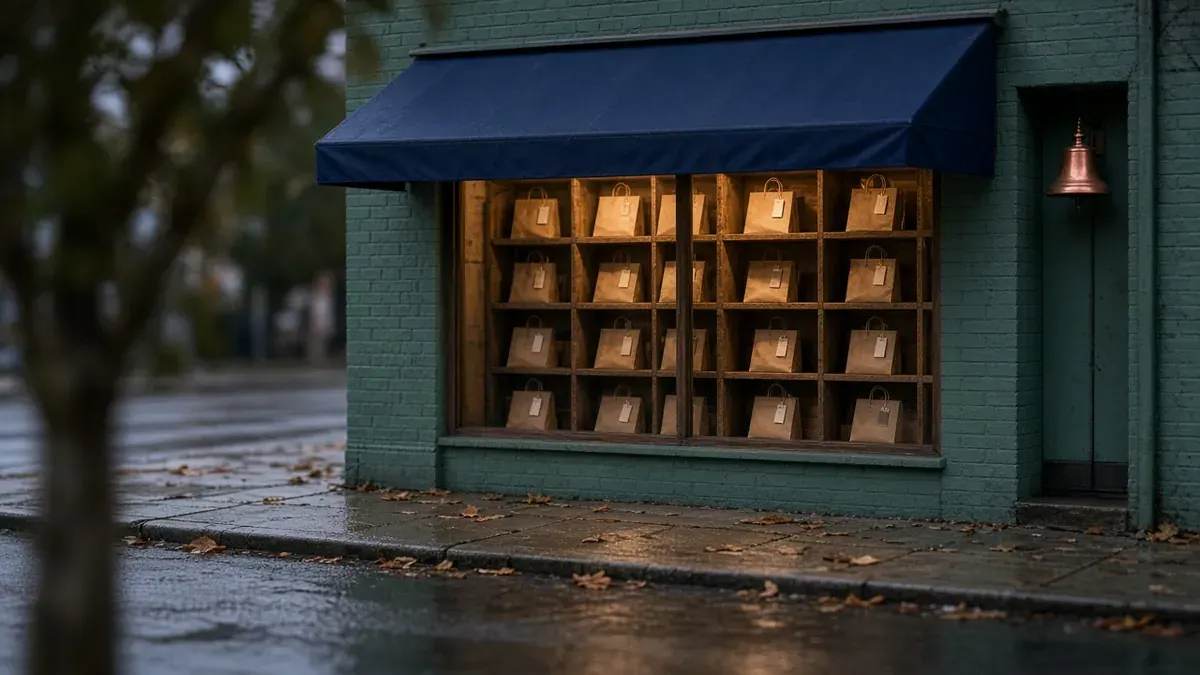
A shipping caption can still lose the sale. The shopper lives ten minutes from you, hates the delivery fee, and never learns they can pay online and walk in. Or they learn it from a Story that says “ready in an hour” while checkout says two days.
Shopify pickup in store is a real delivery method, not a hashtag. You turn it on per location, set an expected ready time, write the instructions customers will actually use, then prepare and close the order in admin or Shopify POS (Shopify Help; Shopify Help). Social has one job after that: send people to products they can actually collect, with a time you can keep. Use Place-Promise-Post-Pickup.
Key Takeaways
- Place first: Enable pickup only at locations that fulfill online orders and hold the inventory, or set up transfers on purpose.
- Promise the time checkout already shows: Copy the expected ready window and the real address into captions, Stories, and the bio.
- Post pickup-eligible SKUs: Do not advertise a colorway that is only in the warehouse if that warehouse is not a pickup location.
- Pickup is an ops loop: Mark ready, send the notification, confirm the name, then mark picked up. The caption ends when the bag leaves the cubby.
Why does Shopify local pickup need its own social plan?
Most stores mention pickup once, after a carrier cutoff. That is a leftover line, not a system. Pickup is a year-round path for anyone who can reach your door, and it is the honest fallback when Halloween or Canadian Thanksgiving shipping closes.
Shopify’s own pickup write-up treats the feature as click-and-collect, in-store pickup, and curbside pickup from the same admin switch. The difference is the instruction you write: counter, side door, or a marked stall (Shopify; Shopify). Social has to repeat that instruction, not invent a third version.
Pickup also fails in public when the admin work is half done:
- Checkout still has no Pick up tab because the location is not enabled
- The product page hides availability because the theme toggle is off
- The caption names a neighborhood the location record does not use
- The inbox answers “can I pick up today?” with a guess
A gift card still covers the person who cannot visit. This plan covers the person who can.
The Place-Promise-Post-Pickup framework
Place-Promise-Post-Pickup keeps setup ahead of the Reel. Do not schedule the launch post until a test checkout in the customer’s country shows Pick up, a location, and a ready window you accept.

Phase 1: Place
Goal: make pickup a real option at locations people can find.
Shopify will not let you sell pickup from nowhere. You need at least one location that fulfills online orders, and the store needs the latest checkout. If checkout is behind, Shopify shows an upgrade notice under Settings, then Checkout (Shopify Help). A location is any place you stock or sell, including a retail floor, a studio, or a warehouse (Shopify Help). New locations usually offer their inventory to online orders unless you turn that off (Shopify Help).
Place checklist:
- Open Settings, then Locations. Confirm the pickup spot is active and that inventory there can fulfill online orders (Shopify Help).
- Open Settings, then Shipping and delivery, then Pickup in store. Open each location and turn on Let customers pick up orders directly at this location (Shopify Help).
- Stock the SKUs you plan to advertise at that location. By default, a location appears only when the whole order is in stock there (Shopify Help).
- If you want pickup when the store is short, turn on store transfers. Shopify can move stock from a closer location with inventory, and it can use a longer processing time for those orders. A Transfer required badge then shows next to the pickup location (Shopify Help).
- Name the location the way a driver would search: city, street, and neighborhood. Shopify’s pickup guide asks for names people can parse, not internal codes like “WH-2” (Shopify).
- Decide counter versus curbside in the instruction field, not in a later comment. Both use this pickup method (Shopify).
If you have no physical place and no staffed studio, stop. Pickup is not a caption you add to a dropshipping store.
Phase 2: Promise
Goal: publish the same ready time and address checkout already shows.
In the pickup settings, set Expected pickup date. That processing time is what customers see at checkout (Shopify Help). Write pickup instructions for hours, entrance, parking, and what to bring. Location instructions can replace the body of the Ready for pickup email, so a cute template that ignores the stall number will lose to the location field (Shopify Help).
Promise checklist:
- Pick a ready window your staff can hit on a busy Saturday, not the fastest label in the dropdown.
- Put hours and the entrance in the location instructions. If curbside, say where to park and how they tell you they arrived (Shopify).
- Show pickup on the product page. Dawn, the Horizon family, and several Theme Store themes support a pickup availability block. In the theme editor, open the product template, select Buy buttons, and turn on Show pickup availability. It appears only for physical variants stocked at a pickup location. Shoppers can open store details, or check other stores when you have more than one (Shopify Help; Shopify.dev).
- Confirm each advertised variant has Physical product turned on in its Shipping settings (Shopify Help).
- Run a test checkout. Customers only see pickup locations in their country. If none exist, checkout says there are no pickup locations available, and they can click Change my location (Shopify Help).
- Customize the Ready for pickup notification under Settings, then Notifications, so the email matches the instruction you just wrote.
- Do not write “free pickup” unless a test cart shows $0 for that method. Pickup is a delivery option. The price is whatever checkout displays.
Shopify Help also notes a customer can send some items and pick up others in one order, and that a transfer on the pickup items changes the estimate (Shopify Help). If you sell that way, say so. If you have not tested it, do not promise mix-and-match in a Reel.
Phase 3: Post
Goal: send local shoppers to a URL that can complete pickup.
Pickup content dies when the bio still points at a nationwide shipping collection. Point people at a pickup-eligible product, a short collection of in-stock local SKUs, or a page that restates hours and the ready window. Use the same discipline as your Shopify link in bio.
Post checklist:
- Build a small “pick up today” collection from SKUs that are actually on the shelf at the advertised location.
- Put that URL in the bio and the Stories sticker only while those SKUs remain pickup-eligible.
- Name the ready window and the neighborhood in the first two lines. “Usually ready the next day at the Oak Street studio” beats “we offer BOPIS.”
- Tag the store location on Instagram and Facebook. Local shoppers search places, not jargon.
- Film the path: door, counter or stall, cubby, bag. Do not overlay a fake checkout screen.
- If the post includes a code, build it with Name-Narrow-Link-Limit and test it on a pickup cart. A shipping-only free-shipping code is a support ticket.
- Save a DM reply for “can I pick it up today?” that matches the dropdown, not the influencer voice. Keep that reply next to the rest of your social customer service scripts.
Park the block on your Shopify social media content calendar so pickup does not overwrite the week’s product education.
Phase 4: Pickup
Goal: close the order the way the caption promised.
You can fulfill pickup from Shopify admin by marking the order ready, notifying the customer, then marking it picked up. If a transfer is still moving, the Transfer required badge stays visible (Shopify Help). Shopify POS can do the same loop on the floor: add a pickup tile to the home screen, turn on order notifications, prepare the items, optionally print a slip with a QR code, send Ready for pickup, confirm the name and order number, then mark picked up and send an email or text confirmation (Shopify Help).
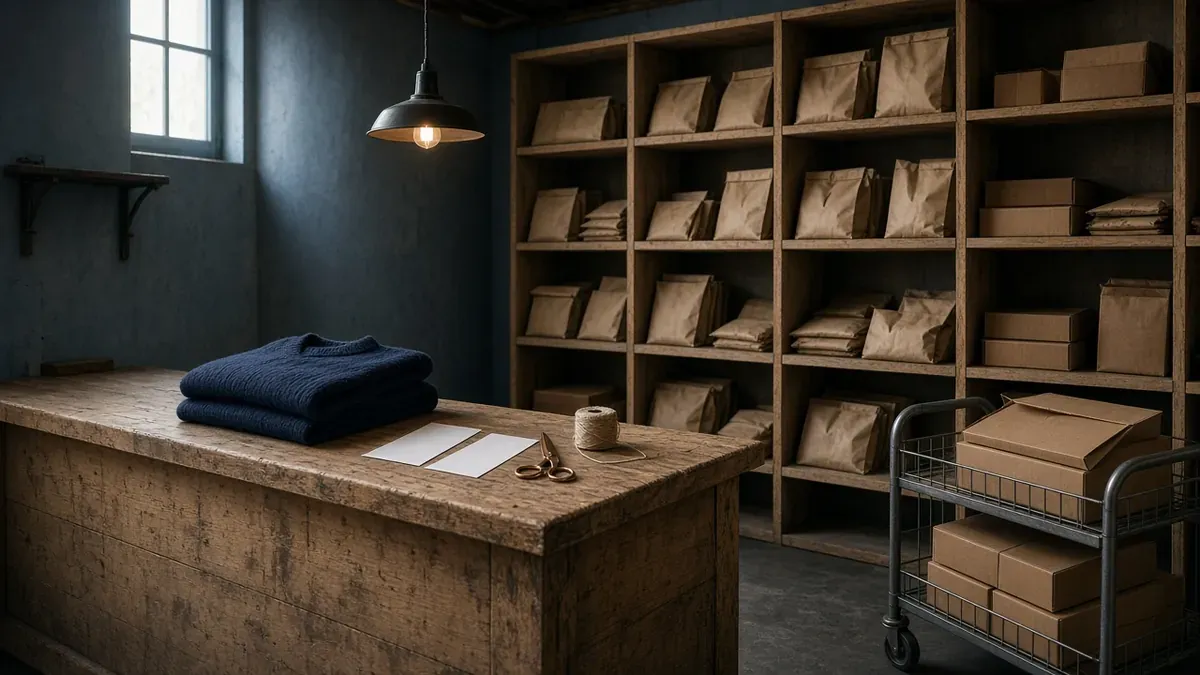
Pickup checklist:
- Give ready orders a dedicated shelf or cubby. Bags that sit under incoming freight get handed to the wrong person.
- Send Ready for pickup only after the bag is on that shelf. Early notifications create a line at an empty counter.
- Confirm name and order number before you hand the bag over. If you printed a slip, scan it (Shopify Help).
- Keep published hours true. A Saturday Story that invites pickup at 6 pm is a lie if the studio closes at 4.
- After the handoff, one useful next step is enough: a review ask, a restock follow, or an in-person look at a related SKU. Do not invent a discount at the door that checkout cannot match.
- If they missed the last ship date and cannot visit, switch the leftover CTA to the gift card product.
Pickup is complete when the order is marked picked up, not when the Reel hits.
What should Shopify stores post about local pickup?
Keep the public calendar short. Place and Promise can stay internal for a day. Then run two weeks of customer-facing posts, and keep one weekly reminder after that.
| When | Phase | What to publish | CTA |
|---|---|---|---|
| Day 1 | Promise | Hours, entrance, and the checkout ready window | Shop pickup-eligible SKUs |
| Day 2 | Post | Product Reel that names the location | Pick up this one |
| Day 4 | Post | Stories map and parking or counter instruction | Sticker to the collection |
| Day 6 | Pickup | Shelf or cubby clip, no fake UI | Order for pickup |
| Weekly | Post | One in-stock local SKU with the same ready line | Pick up at [location name] |
| After a ship cutoff | Post | “Too late to ship, still time to collect” | Pickup collection or gift card |
A workable mix:
- Two Facebook posts for neighbors and family sharers
- Two Instagram feed or carousel posts that show the door and one product
- Stories on the days you have staffed hours
- One short Reel of the path from sidewalk to cubby
Do not add a daily “come pick up” graphic if the location is closed. Cadence outside this block should still match a sustainable baseline from how often ecommerce stores should post.
How is pickup different from local delivery or carrier pickup points?
These three sound related and break captions when you mash them.
Pickup in store. The customer comes to a location you enabled. That is this article.
Local delivery. You take the order to an address inside a zone you configure under Shipping and delivery. It is a separate additional delivery method (Shopify Help).
Carrier pickup points. Shopify Shipping can offer lockers or post offices in supported countries when the cart ships from one location. That is a shipping option, not your retail counter, and it has its own eligibility rules (Shopify Help).
If a caption says “pick up nearby” and checkout offers a carrier locker, you taught the wrong trip. Name your street, or name the carrier, not both in one vague line.
Subscription orders can also use pickup in store once that method is enabled (Shopify Help). If the bag is a refill on a selling plan, follow the Shopify subscriptions social plan so the caption names both the interval and the door.
How should pickup sit next to holiday campaigns?
Pickup is the local lane. Holidays borrow it. They should not own it.
If Halloween is live. Keep ship-by dates on the costume collection. After the last ship date, point the leftover physical CTA at this pickup loop, then at gift cards if they cannot visit (Halloween plan).
If Canadian Thanksgiving is your October host weekend. Fit-Feast-Fulfill-Follow already treats pickup as a Fulfill option when Canada Post is closed. Use this framework so the October 12 caption matches a location you enabled, not a hope (Canadian Thanksgiving plan).
If the holiday gift guide is the main bio. Leave pickup as a supporting line on local SKUs. Switch the primary bio only when pickup is the campaign, such as the week after a cutoff.
If you sell only online with no staffed location. Skip the hashtag. Ship truth and gift cards are enough.
One caption, one job. A shopper should not land on a bio that screams Halloween, host gifts, and “pick up in 20 minutes” at once.
Mistakes that waste pickup posts
Posting before Pick up exists in checkout. A pretty cubby photo that 404s the method trains people to ignore you.
Promising a faster window than the dropdown. Checkout will contradict the Story. Staff will spend the afternoon apologizing.
Advertising a SKU that is not at the location. Default rules hide that location when the cart cannot be filled there (Shopify Help).
Calling a warehouse “the shop.” Use the address and the door they need.
Ignoring country. A US-only location will not appear for a checkout set to Canada (Shopify Help).
Sending Ready for pickup before the bag is staged. Early emails create a crowd at an empty counter.
Treating pickup as only a holiday leftover. The feature is year-round. Holidays are when you remind people it exists.
Mixing pickup points, local delivery, and your counter in one graphic. Three methods, three trips.
FAQ
What is Shopify pickup in store?
It is a checkout delivery method that lets a customer pay online and collect the order at a location you enable. You turn it on per location under Settings, then Shipping and delivery, then Pickup in store. Staff or admin mark the order ready, notify the customer, then mark it picked up.
Does pickup appear at checkout if an item is out of stock at that store?
By default, no. Shopify only shows a pickup location when the entire order is in stock there. If you have more than one location, you can turn on store transfers so inventory can move to the pickup spot, and checkout then shows a longer estimated ready time.
How do I show pickup availability on Shopify product pages?
Use a theme that supports it, such as Dawn or a Horizon-family theme. In the theme editor, open the product template, select Buy buttons, and turn on Show pickup availability. The block only appears for physical variants that are stocked at a pickup location.
Is pickup in store the same as local delivery or carrier pickup points?
No. Pickup in store means the customer comes to your location. Local delivery means you take the order to an address inside a zone you set. Carrier pickup points ship a parcel to a locker or post office through supported carriers. Do not mix those three in one caption.
Should I promote pickup if I only have a warehouse or studio?
Yes, if that location fulfills online orders, pickup is turned on, and someone will actually be there during the hours you publish. Name the real address and entrance. Do not call a warehouse “the shop” if the door they need is a loading bay.
Start Place-Promise-Post-Pickup this week
- Place: Confirm one location fulfills online orders, enable pickup, and stock the SKUs you will name.
- Promise: Set a ready window you can keep, write the entrance, turn on product-page availability, and finish one test checkout.
- Post: Publish one collection URL, one hours Story, and one product Reel that names the neighborhood.
- Pickup: Stage a cubby, send Ready for pickup only when the bag is there, and mark the first test order picked up.
Do that before you tell Instagram “grab it today.” The stores that look calm in October built the location before the caption.
If you want those pickup reminders sitting beside Halloween cutoffs and gift-card fallbacks in one place, IDEQO’s content calendar can hold the ready-time line, keep the collection URL consistent, and leave room for the week you switch the bio. Start free with IDEQO. Free plan available. No credit card required.
Frequently Asked Questions
What is Shopify pickup in store?
It is a checkout delivery method that lets a customer pay online and collect the order at a location you enable. You turn it on per location under Settings, then Shipping and delivery, then Pickup in store. Staff or admin mark the order ready, notify the customer, then mark it picked up.
Does pickup appear at checkout if an item is out of stock at that store?
By default, no. Shopify only shows a pickup location when the entire order is in stock there. If you have more than one location, you can turn on store transfers so inventory can move to the pickup spot, and checkout then shows a longer estimated ready time.
How do I show pickup availability on Shopify product pages?
Use a theme that supports it, such as Dawn or a Horizon-family theme. In the theme editor, open the product template, select Buy buttons, and turn on Show pickup availability. The block only appears for physical variants that are stocked at a pickup location.
Is pickup in store the same as local delivery or carrier pickup points?
No. Pickup in store means the customer comes to your location. Local delivery means you take the order to an address inside a zone you set. Carrier pickup points ship a parcel to a locker or post office through supported carriers. Do not mix those three in one caption.
Should I promote pickup if I only have a warehouse or studio?
Yes, if that location fulfills online orders, pickup is turned on, and someone will actually be there during the hours you publish. Name the real address and entrance. Do not call a warehouse “the shop” if the door they need is a loading bay.