You’ll create a Brand Kit that ensures every post, graphic, and caption stays on brand. This is the foundation for everything you create in IDEQO.
Time required: 5-10 minutes
What you’ll need: Your logo file, brand colors (hex codes), and a sense of your brand’s personality
- 1
Open Brand Kit
Click on Brand Kit in the left sidebar menu. If you haven't created one yet, you'll be prompted to create your first Brand Kit.
- 2
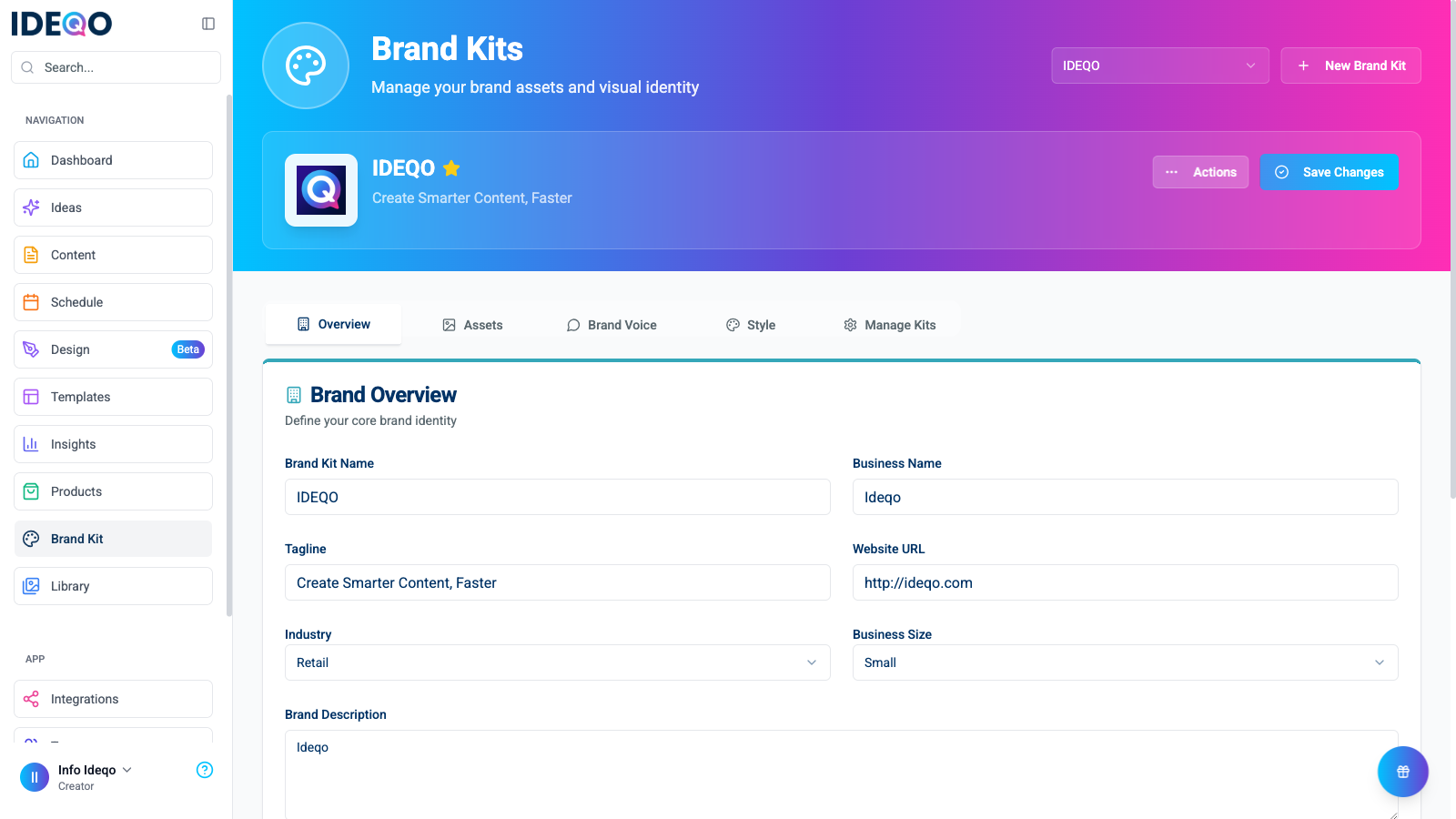
Complete the Overview
In the Overview tab, enter your Business Name, Industry, and Description. This helps IDEQO understand who you are.
- 3
Define Your Style
Switch to the Style tab. Set your Primary and Secondary Colors (click the color box to paste hex codes). Then, choose your Heading and Body Fonts.
- 4
Upload Assets
Go to the Assets tab. Upload your Primary Logo (used for headers) and Alternative Logo (for dark/light backgrounds). You can also upload general brand imagery here.
- 5
Set Your Voice
In the Voice tab, define your Tone & Style (e.g., Professional, Friendly). Add Keywords to use and Words to Avoid. Define your Target Audience demographics.
This is the “ID card” for your business.
- Business Details: Name, Industry, Size.
- Brand Story: Your mission and vision.
- Team Sharing: Control who can access this Brand Kit.
Your central library for brand files.
- Logos: Upload Primary, Alternative, and Thumbnail versions.
- Brand Imagery: Stock photos or brand photography that represents your vibe.
- Documents: Store brand guidelines, content strategies, and marketing PDFs.

This teaches IDEQO how to write like you.
- Tone & Style: Toggle traits like “Casual”, “Authoritative”, or “Playful”.
- Keywords: Core words that should appear often.
- Words to Avoid: Words or phrases the AI should never use.
- Target Audience: Define who you are talking to (Age, Gender, Interests, Pain Points).
- Products & Services: List what you sell so the AI knows what to promote.

This ensures your content looks like you.
- Colors: Define your palette. IDEQO uses these for graphics and templates.
- Typography: Select fonts for headlines and body text. You can preview how they look together directly in this tab.

- Multiple Kits: Create separate Brand Kits for different sub-brands or clients (Pro plan).
- Default Kit: Star your primary Brand Kit to use it by default.
Your Brand Kit isn’t set in stone. As your brand evolves, update it.
- New brand colors or logo — Update immediately so old assets don’t slip through
- Tone shift — If you’re moving from casual to professional (or vice versa), adjust your Voice settings
- New products — Add them to the Products & Services section in the Voice tab
Go to Brand Kit anytime. Changes save automatically or via the “Save Changes” button, applying to all new content immediately.
Be specific with Voice.
Don’t just select “Friendly.” Add specific Keywords and Pain Points in the Voice tab to make the AI truly understand your audience.
Upload high-quality Logos.
Use PNGs with transparent backgrounds for the best results in templates.
Use the Style Preview.
In the Style tab, check the “Typography Preview” to ensure your heading and body fonts are readable and look good together.
Now that your Brand Kit is ready, connect your first channel and create a post that uses it.

